
Images & PDF · Step-by-step guide
How to Convert and Compress Images Online
Image Converter & Compressor changes an image's format (for example PNG to JPG or WebP) and makes the file smaller. It is useful for websites, email attachments and upload size limits.
How to use it
Add your images
Drop images onto the box, click to choose them, or paste one from your clipboard. You can add several at once.
Pick the new format
Choose JPEG, PNG, WebP or AVIF from Format. WebP is a good all-round choice for the web.
Set quality and size
Move the Quality slider: lower means a smaller file. To resize, pick Exact, % or Max (longest side) and enter the size.
Compare before and after
Check the preview and the new file size to make sure it still looks good.
Convert and download
Press Convert & Download. Several images are downloaded together as a ZIP.
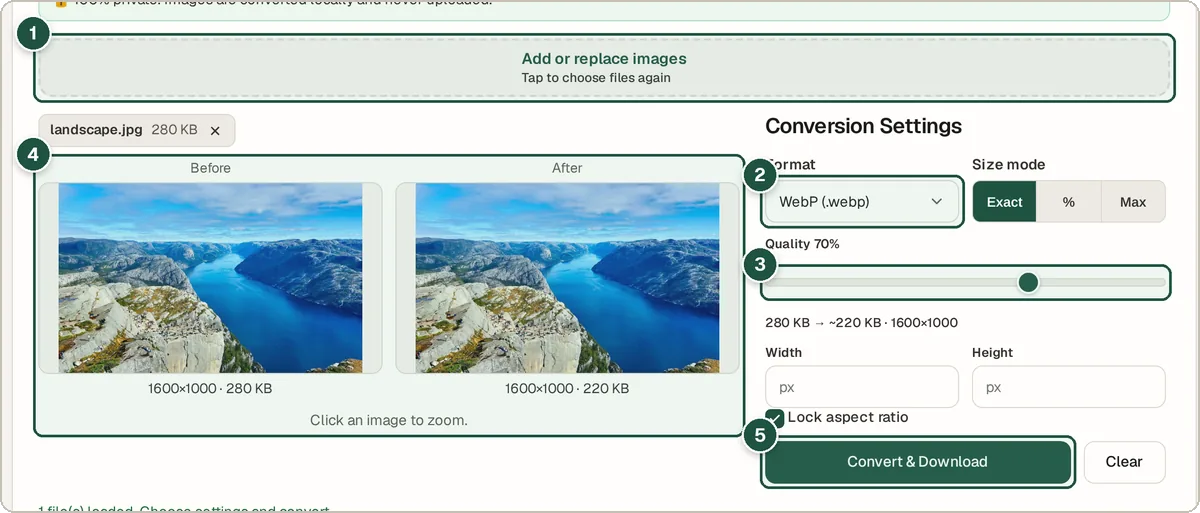
Dropzone (1), format (2), quality (3), before and after (4), and Convert & Download (5).
Tips and common questions
Which format should I pick?
JPEG for photos that must open everywhere, PNG for graphics and transparency, WebP for small web images, and AVIF for the smallest files in modern browsers.
What quality should I use?
Around 75 to 85% usually looks the same as the original at a much smaller size. Go lower only if file size matters more than detail.
Will PNG to JPG keep my transparent background?
No. JPEG has no transparency, so transparent areas are filled in. Use PNG or WebP to keep them.
Privacy
Images are converted in your browser. They are never uploaded, so it is safe for personal photos.
Ready to try it? The Image Converter & Compressor is free and needs no account.
Open the Image Converter & Compressor