
Images & PDF · Step-by-step guide
How to Convert an Image to Base64 (Data URI)
Image to Base64 converts a picture into a long text string (a data URI) that you can paste straight into HTML, CSS or JSON, and turns such strings back into images.
How to use it
Choose the direction
Pick Image → Base64, or Base64 → Image to decode.
Choose your image
Press Choose an image and pick a file.
Pick the output format
Choose from Data URI, Raw Base64 only, CSS background-image, HTML <img> tag, Markdown image or JSON string.
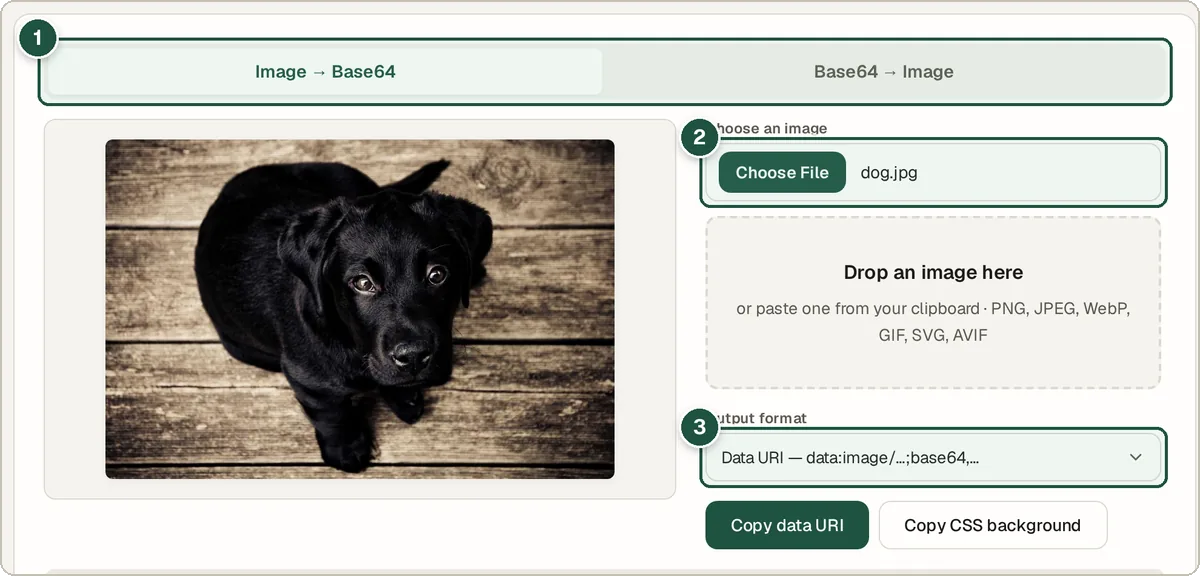
Direction tabs (1), choose an image (2) and output format (3). Check the result
The encoded text appears with a preview and size.
Copy it
Press Copy data URI or Copy CSS background and paste it into your code.
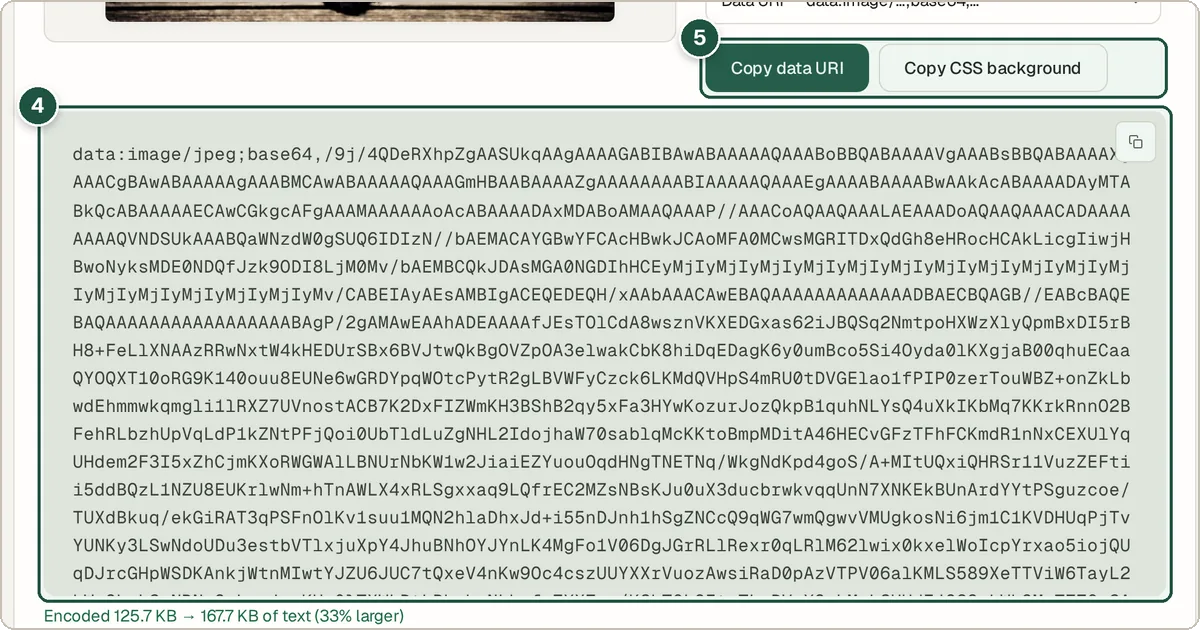
The Base64 result (4) and copy buttons (5).
Tips and common questions
When should I use a data URI?
For small icons and images in emails, HTML files or CSS, where you want one file with no separate image. For large photos, a normal image file loads faster.
Why is the Base64 text bigger than the image?
Base64 makes data about a third larger. That is normal.
How do I turn Base64 back into an image?
Switch to Base64 → Image, paste the string, press Decode and then Download Image.
Privacy
Images are encoded in your browser and never uploaded.
Ready to try it? The Image to Base64 Data URI Converter is free and needs no account.
Open the Image to Base64 Data URI Converter