
Images & PDF · Step-by-step guide
How to Crop, Resize and Edit Photos Online
Photo Editor handles everyday edits: cropping, rotating, brightening, adding a caption or filter, and saving in the format you need. It opens in a full-screen editor right in your browser.
How to use it
Open your photo
Drop a photo onto the box or click to choose one (JPG, PNG or WebP). The full-screen editor opens.

Drop your photo here to open the editor (1). Pick a tool tab
Use the tabs: Crop (with 1:1, 4:3, 16:9 and 9:16 presets), Adjust, Transform (rotate and flip), Text and Output.
Make your changes
In Adjust, move sliders such as Brightness, Contrast or Saturation, or add filters like Grayscale, Sepia and Vignette. Undo and Redo are at the top.
Download
Choose the format, quality and scale in Output, then press Download.
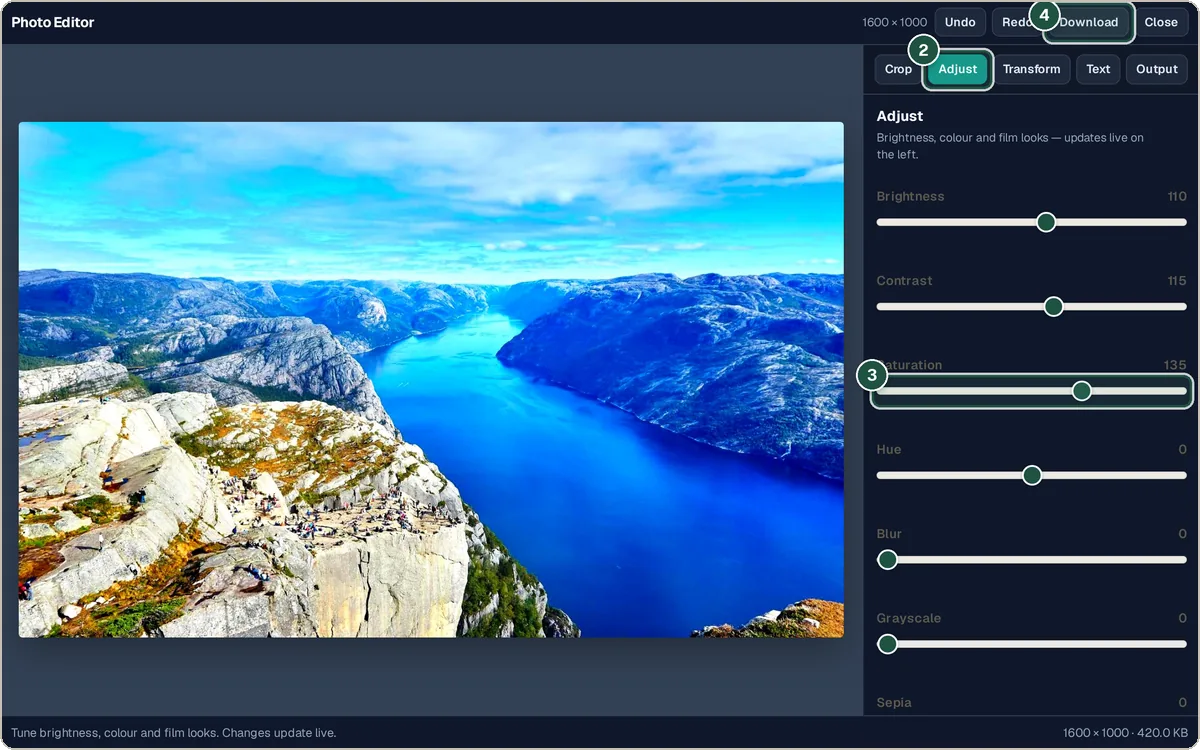
Adjust tab (2), Saturation slider (3) and Download (4).
Tips and common questions
How do I crop a photo for Instagram?
Open the Crop tab, press Crop image…, choose 1:1 for a square post or 9:16 for a story, then Apply crop.
How do I make a photo smaller?
In Output, lower the Scale or Quality, or choose WebP. For many images at once, use the Image Converter.
Can I undo a change?
Yes. Press Undo, or Reset filters to clear all adjustments.
Privacy
Your photo is edited on your own device. It is never uploaded.
Ready to try it? The Photo Editor is free and needs no account.
Open the Photo Editor