
Images & PDF · Step-by-step guide
How to Remove a Photo Background for Free
Background Remover cuts the subject out of a photo automatically, so you get a clean PNG with a transparent background. Great for product photos, profile pictures and designs.
How to use it
Add your photo
Drop a photo onto the box or click to choose one. You can also try one of the samples. The first time, the AI model (about 100 MB) downloads once and is then cached.
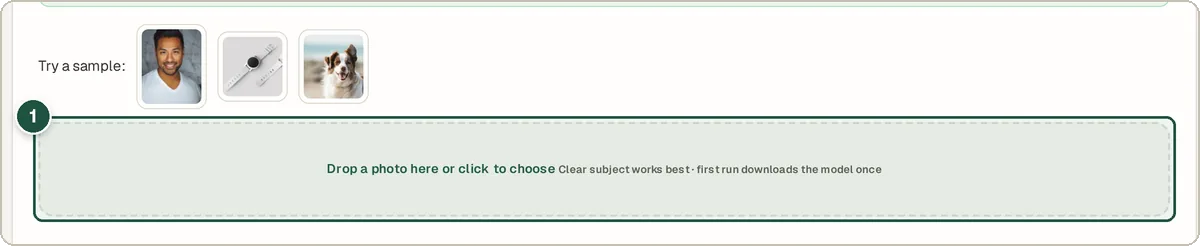
Drop a photo or pick a sample (1). Check the cutout
After a few seconds the background disappears and you see your subject on its own.
Touch up the edges
Under Refine cutout, use Restore to paint back parts that were removed by mistake, or Erase to remove leftover background. Change the brush size if needed.
Choose a background
Keep it Transparent, or pick White, Black or a Custom colour.
Download
Press Download PNG for the transparent cutout, or Download composite for the version with your chosen background.
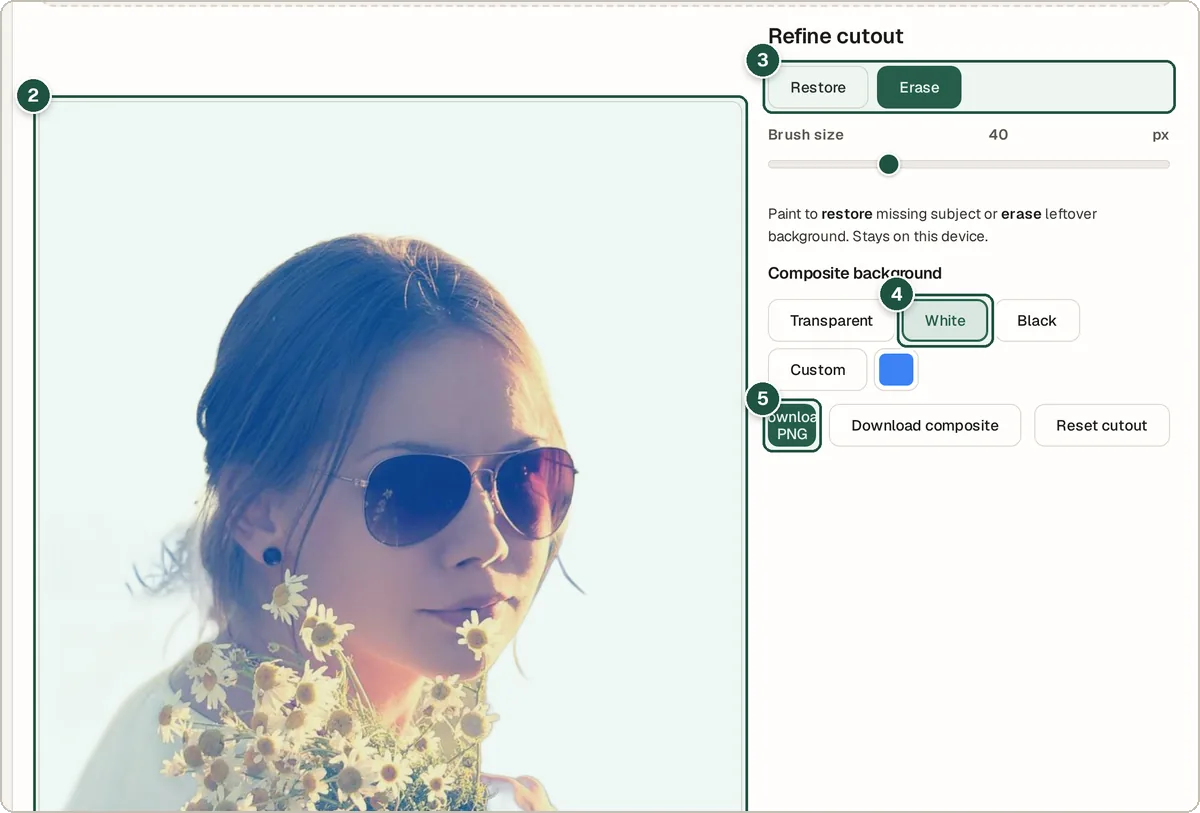
The cutout (2), refine brushes (3), background choice (4) and Download PNG (5).
Tips and common questions
Which photos work best?
Photos with a clear main subject, such as a person, pet or product, and good lighting. Busy scenes or hair against a similar background may need touching up.
Why is the first run slow?
The AI model downloads once (about 100 MB). After that it is stored in your browser and later photos are much faster.
Can I make a white background for product photos?
Yes. Choose White and press Download composite.
Privacy
The AI runs on your own device. Your photo is never uploaded; only the model files are downloaded.
Ready to try it? The Background Remover is free and needs no account.
Open the Background Remover