
Images & PDF · Step-by-step guide
How to Edit, Merge and Split PDFs for Free
PDF Editor is a set of PDF tools in one place: edit text, merge, split, remove or rotate pages, compress, number pages, add a watermark, and convert between PDF and images.
How to use it
Choose what you want to do
Pick an operation: Edit content, Merge, Split, Pages, Compress, Numbers, Watermark, PDF → Images or Images → PDF. This guide uses Merge.
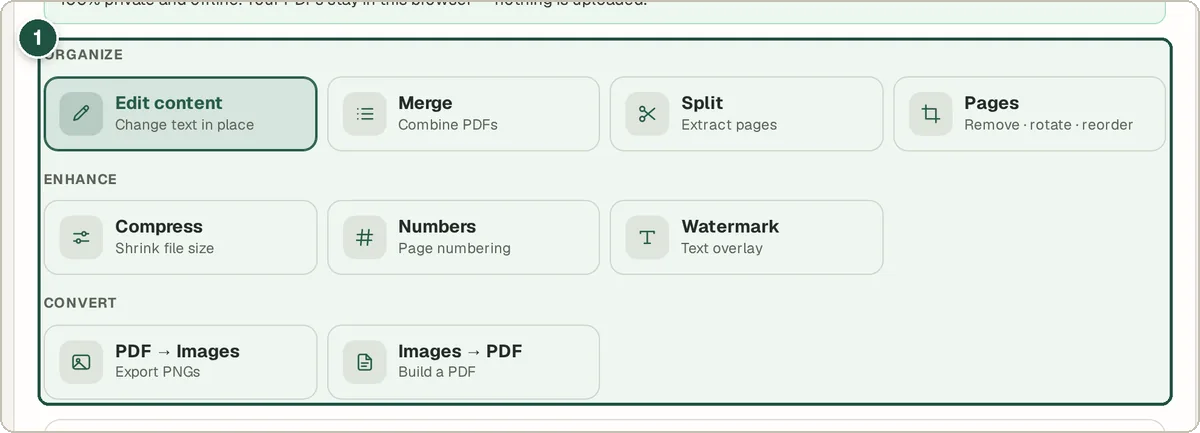
All PDF operations in one grid (1). Add your PDFs
Drop your PDF files onto the box or click to choose them.
Check the order
Each file appears as a numbered preview. Files are merged in the order you chose them. To change the order, remove a file with × or choose the files again in the order you want.
Merge and download
Press Merge PDFs and your combined file downloads.
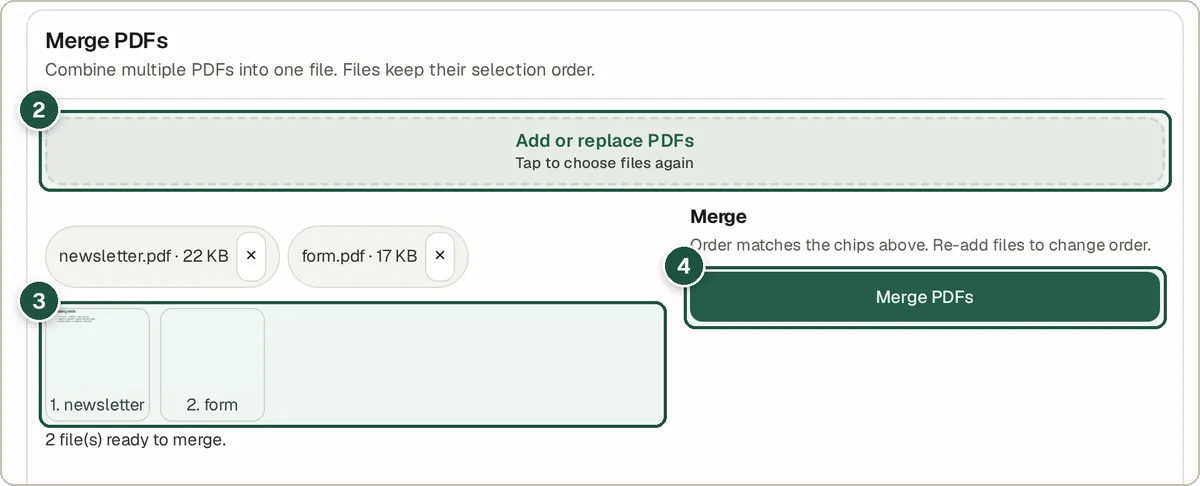
Add files (2), check the numbered order (3) and press Merge PDFs (4). To edit text, use Edit content
Choose Edit content, add a PDF and press Open editor. With Select / Edit on, click a line of text to change it. The toolbar can also Add text, Highlight, Draw, add an Image or Redact.
Save the edited PDF
Press Download in the editor to save your changes.
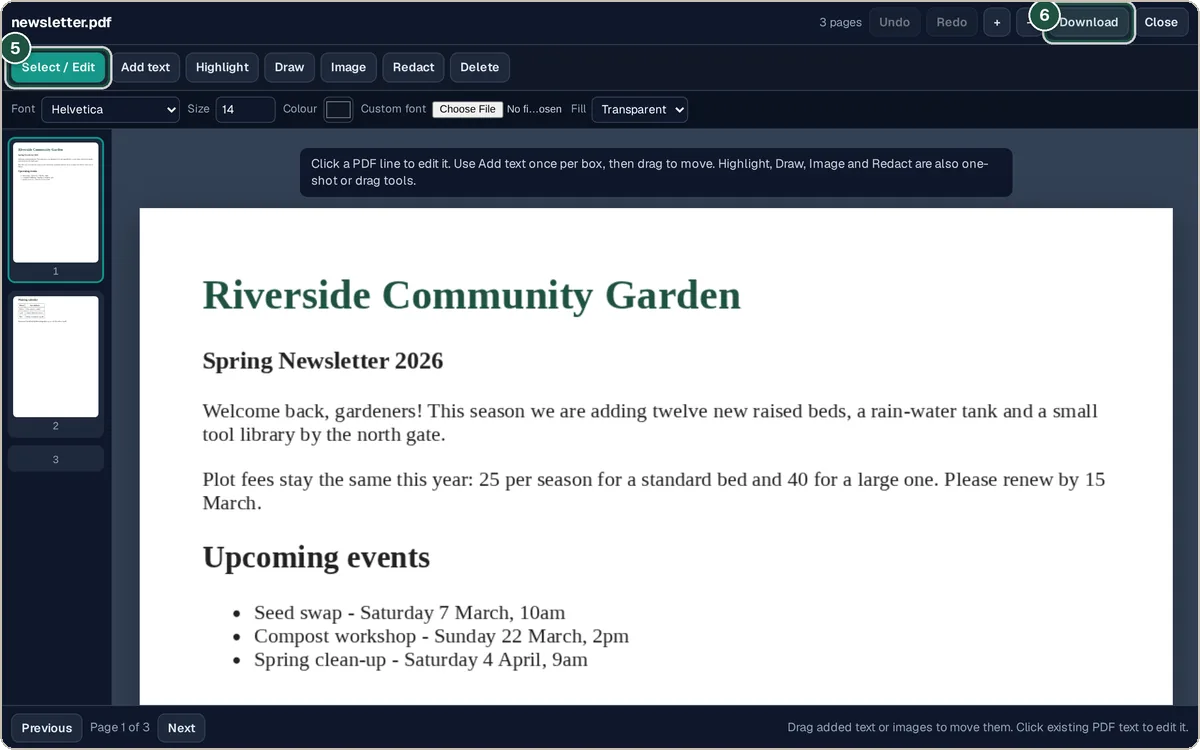
The editor's Select / Edit tool (5) and Download (6).
Tips and common questions
How do I split a PDF?
Choose Split, add the PDF, type page ranges like 1-3, 5, pick One PDF or ZIP of pages, and press Split & Download.
How much can Compress shrink a file?
It re-renders pages as images, which helps most with scanned PDFs and large photos. Choose Strong, Good, Less or a custom quality. Text may no longer be selectable afterwards.
Can I remove or rotate pages?
Yes. Choose Pages, then remove, rotate or drag thumbnails to reorder, and press Download Edited PDF.
Can I turn photos into a PDF?
Yes. Choose Images → PDF, add PNG, JPG or WebP images and press Create PDF.
Privacy
Your PDFs are processed in your browser and never uploaded, so it is safe for contracts and personal documents.
Ready to try it? The PDF Editor is free and needs no account.
Open the PDF Editor