
Images & PDF · Step-by-step guide
How to Convert a PDF to Word or Text
PDF to Word Converter extracts the text from a PDF and gives you an editable Word document or plain text file, so you can reuse the words without retyping them.
How to use it
Add your PDF
Drag your PDF onto the box or click to browse. The file name appears in a row.
Choose pages
Page thumbnails appear. Click them to choose pages, or use Select all pages. Tick Keep page breaks or Join lines into paragraphs to suit your document.
Press Extract Text
The text is pulled out of the selected pages.
Download
Press Download Word (.docx), Download Text (.txt) or Copy All Text.
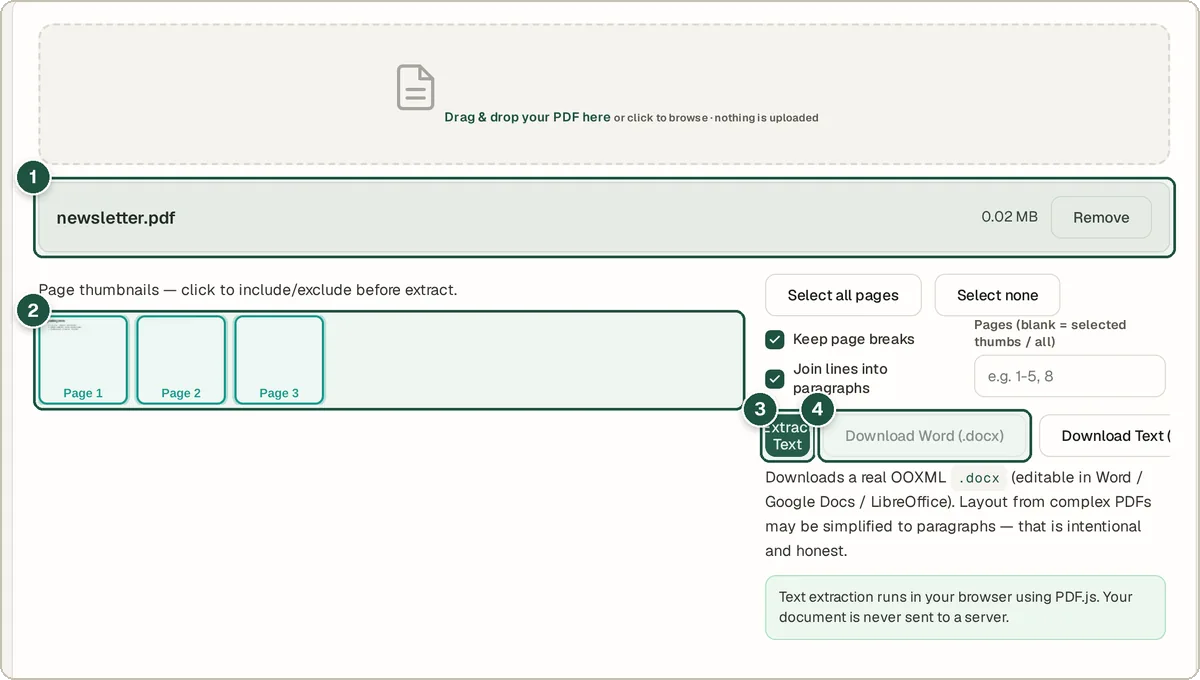
File row (1), page thumbnails (2), Extract Text (3) and Download Word (4). Check the text
The extracted text shows below, so you can check it before you use it.
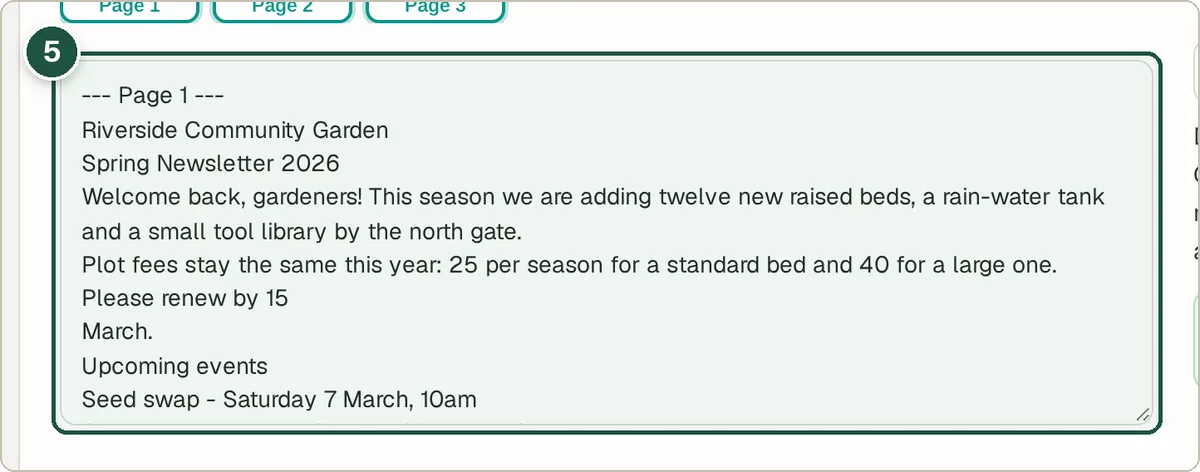
The extracted text (5).
Tips and common questions
Will the Word file look exactly like the PDF?
No. It gives you the text in an editable form. Layouts, columns and images are not copied, so expect to tidy up formatting.
Why is no text found?
Scanned PDFs are pictures of pages, not real text. This tool does not do OCR (reading text from images), so it cannot extract text from them.
Can I convert only some pages?
Yes. Select the thumbnails you want, or type pages into Pages, such as 1-2.
Privacy
Your PDF is read in your browser and never uploaded.
Ready to try it? The PDF to Text & Word Converter is free and needs no account.
Open the PDF to Text & Word Converter