
Network & Domain · Step-by-step guide
How to Send Files Between Devices on Wi-Fi
LAN File Transfer sends files between devices on the same Wi-Fi network, such as phone to laptop, with no cables, apps or accounts. You just type a six-digit code.
How to use it
On the sending device, open Send Files
Open the tool and stay on the Send Files tab.
Choose your files
Pick the files to send.
Note the six-digit code
A code appears. Tell it to the other person or type it on your other device.
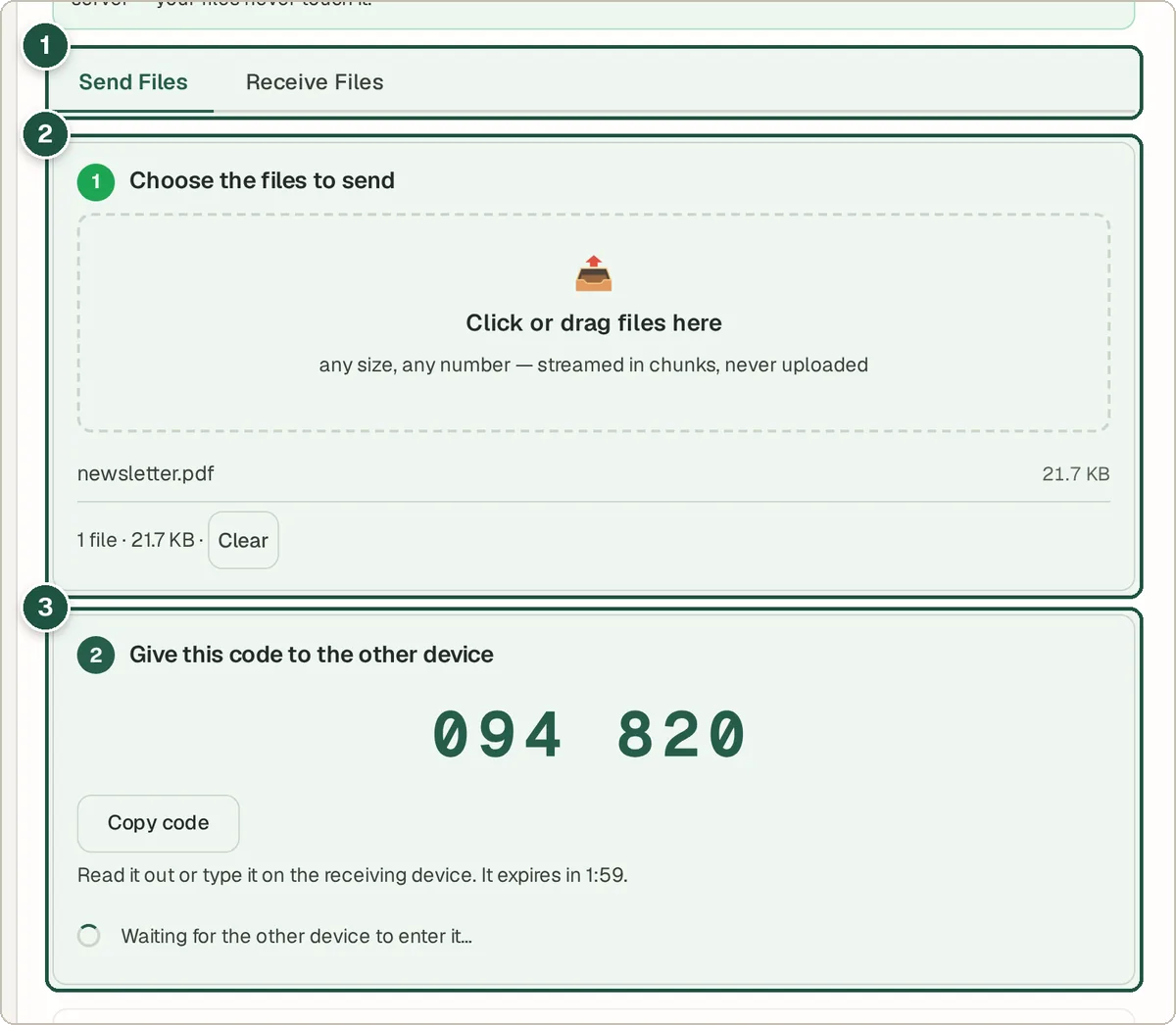
Sender: Send tab (1), file picker (2) and the six-digit code (3). On the receiving device, enter the code
Open the tool, switch to Receive Files, type the six digits and press Connect.
Save the files
The files stream across. When you see Transfer complete!, save them.
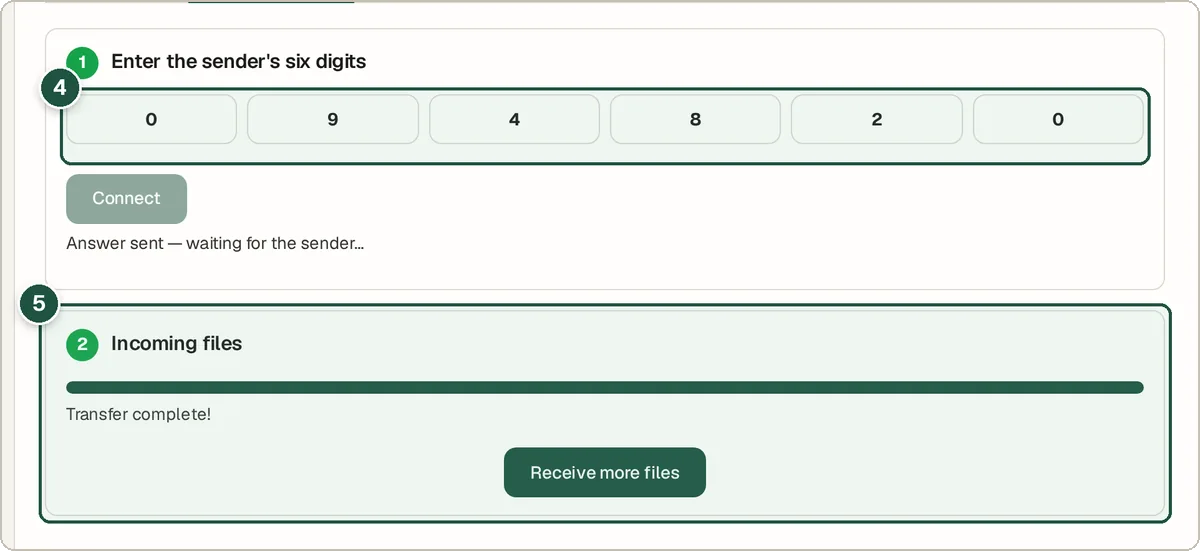
Receiver: code boxes (4) and the finished transfer (5).
Tips and common questions
Do both devices need to be on the same Wi-Fi?
Yes. For devices on different networks, use WAN File Transfer instead.
Is there a file size limit?
There is no set limit. Very large files depend on your devices' memory and Wi-Fi speed, and both pages must stay open until the transfer finishes.
Do I need to install anything?
No. It works in any modern browser on phones, tablets and computers.
Privacy
Only the pairing code goes through a server. The files travel directly between your devices (peer-to-peer) and are never uploaded.
Ready to try it? The LAN File Transfer — Send Files Over WiFi is free and needs no account.
Open the LAN File Transfer — Send Files Over WiFi