
Security · Step-by-step guide
How to Encrypt and Decrypt Files and Text
Encrypt & Decrypt locks text or files with a passphrase, so only someone with the passphrase can open them. Use it before emailing a private document or storing notes in the cloud.
How to use it
Choose Text or Files
Pick the Text tab for a message or the Files tab for documents and photos. Leave the switch on Encrypt.
Add what you want to lock
Type into Text to encrypt, or choose your files.
Set a strong passphrase
Type a passphrase and repeat it. Press Suggest a strong passphrase if you want one made for you. The default method, AES-GCM, is a strong choice, and a meter shows how strong your passphrase is.
Encrypt
Press Encrypt (or Encrypt Files).
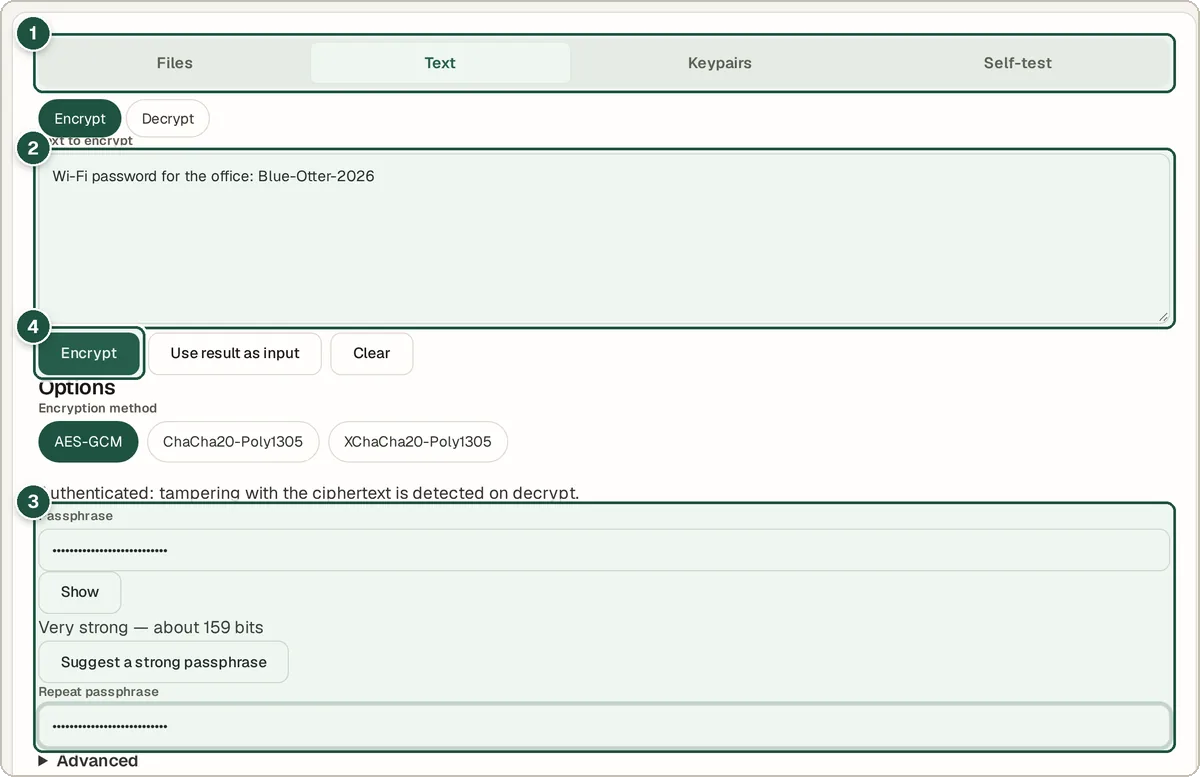
Text tab (1), your message (2), passphrase (3) and the Encrypt button (4). Copy or download the result
Press Copy or Download as file. To open it later, switch to Decrypt, paste or load it back in, enter the same passphrase and run it.
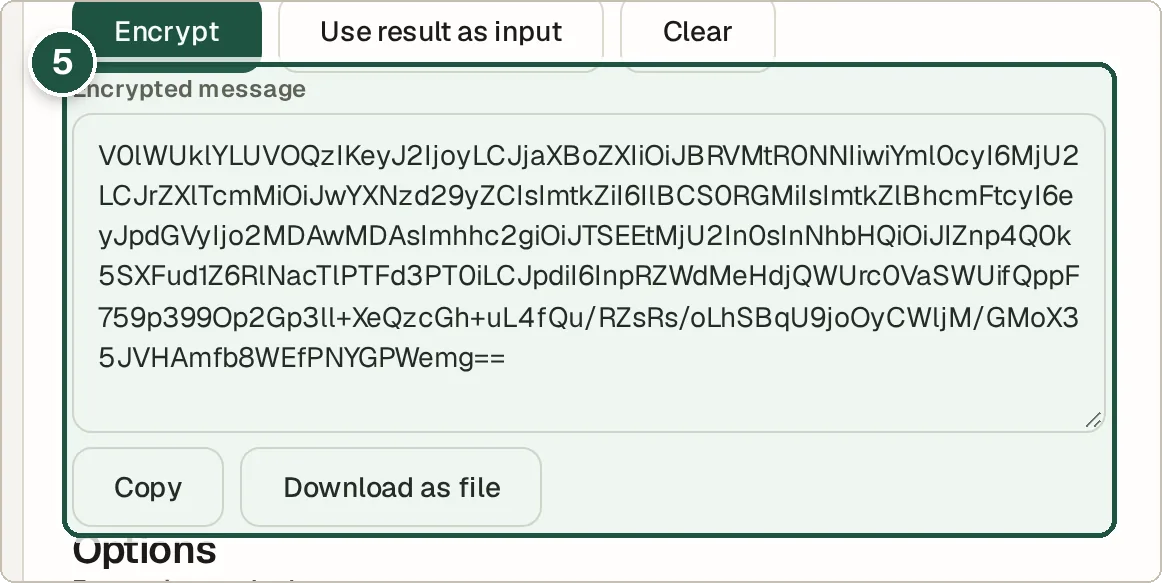
The encrypted message with Copy and Download as file (5).
Tips and common questions
What if I forget my passphrase?
The data cannot be recovered. There is no reset and no backdoor, so store your passphrase somewhere safe, such as a password manager.
How do I send the passphrase to someone?
Send it a different way from the file, for example by phone or a different chat app. Sending both in one email defeats the point.
What are keypairs for?
The Keypairs tab makes a public and private key. Others can encrypt with your public key, and only your private key can decrypt it, so no shared passphrase is needed.
Can I decrypt without this website?
The tool can show a Decrypt from a terminal command for supported settings, so you are not locked in.
Privacy
Encryption and decryption happen entirely in your browser. Your files, text and passphrase are never uploaded.
Ready to try it? The Encrypt & Decrypt Text and Files is free and needs no account.
Open the Encrypt & Decrypt Text and Files