
Text & Writing · Step-by-step guide
How to Sort, Dedupe and Clean Lines of Text
Text Toolkit tidies up lists and messy text. Sort names, remove duplicate emails, delete blank lines, add numbering or find and replace, all in one place.
How to use it
Paste your list
Put your text into Your text — one item per line. Each line is treated as one item.
Sort it
Press a sort button such as A → Z, Z → A, Numeric ↑ or By length. You can also Shuffle or Reverse order.
Clean it
Press Remove duplicates, Remove blank lines or Trim spaces. Each button changes the text straight away, and you can press several in a row.
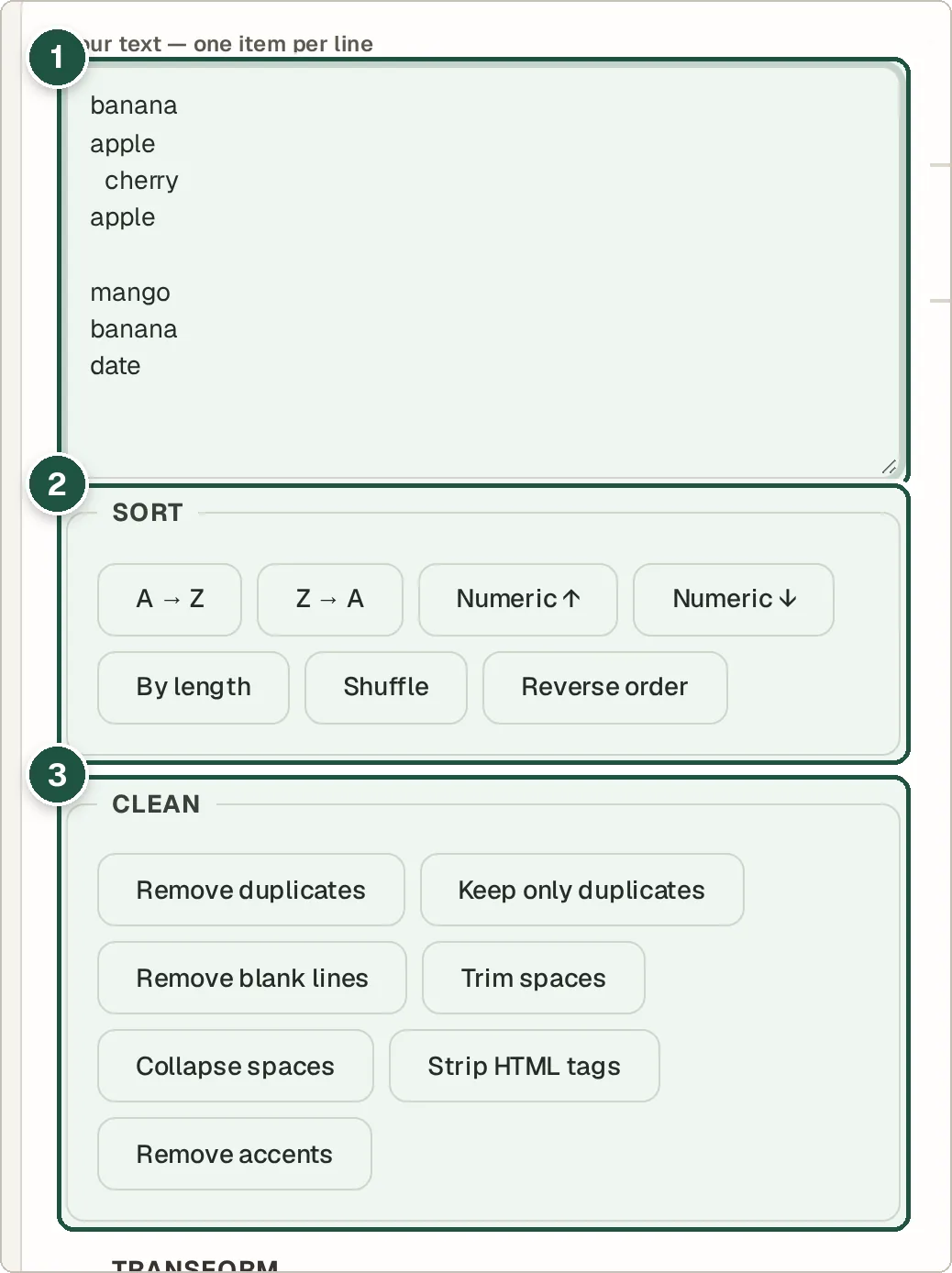
Your list (1), the sort buttons (2) and the clean-up buttons (3). Copy the result
Check the cleaned list, then press Copy Result or Download .txt. Made a mistake? Press Undo.
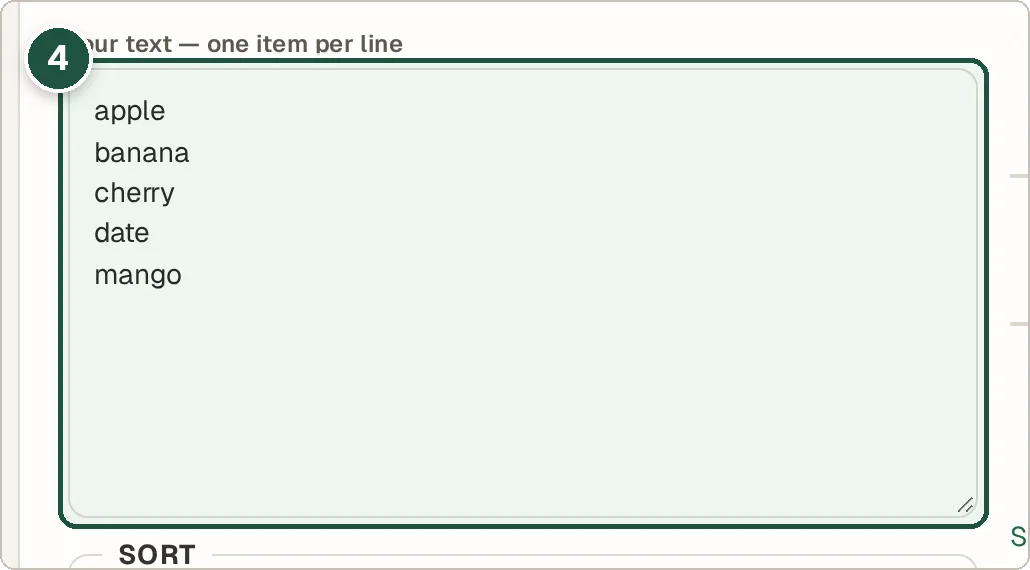
The sorted list with duplicates and blanks removed (4).
Tips and common questions
Does Remove duplicates care about capital letters?
By default, "Apple" and "apple" count as different. Tick Ignore case when sorting and removing duplicates to treat them as the same.
Can I add something to the start of every line?
Yes. Type into Prefix each line or Suffix each line and press Apply prefix / suffix. This is useful for adding quotes or commas.
Can I turn a comma-separated list into lines?
Yes. Press Split on commas. To go the other way, press Join into one line.
Does find and replace support regex?
Yes. Tick Use regular expression for pattern matching, or leave it off for a normal find and replace.
Privacy
Everything runs in your browser, so your lists never leave your device.
Ready to try it? The Text Toolkit — Sort, Dedupe & Clean Lines is free and needs no account.
Open the Text Toolkit — Sort, Dedupe & Clean Lines