
Everyday · Step-by-step guide
How to Make a QR Code for a Link, Wi-Fi or Text
QR Code Generator makes a scannable QR code for a link, text, Wi-Fi network, contact card (vCard), email, SMS or phone number. Print it on a flyer, menu or business card.
How to use it
Choose what the code is for
Pick a type: URL, Text, Wi-Fi, vCard, Email, SMS or Phone.
Fill in the details
For a link, paste the web address. For Wi-Fi, type the network name and password, and the fields change to match the type you picked.
Style it (optional)
Pick Foreground and Background colours and the Error correction level. You can also choose a size and add a small logo in the centre.
Check the preview
The QR code updates live. Scan it with your phone camera to test it before you print.
Download
Press Download PNG for everyday use, or Download SVG for sharp printing at any size.
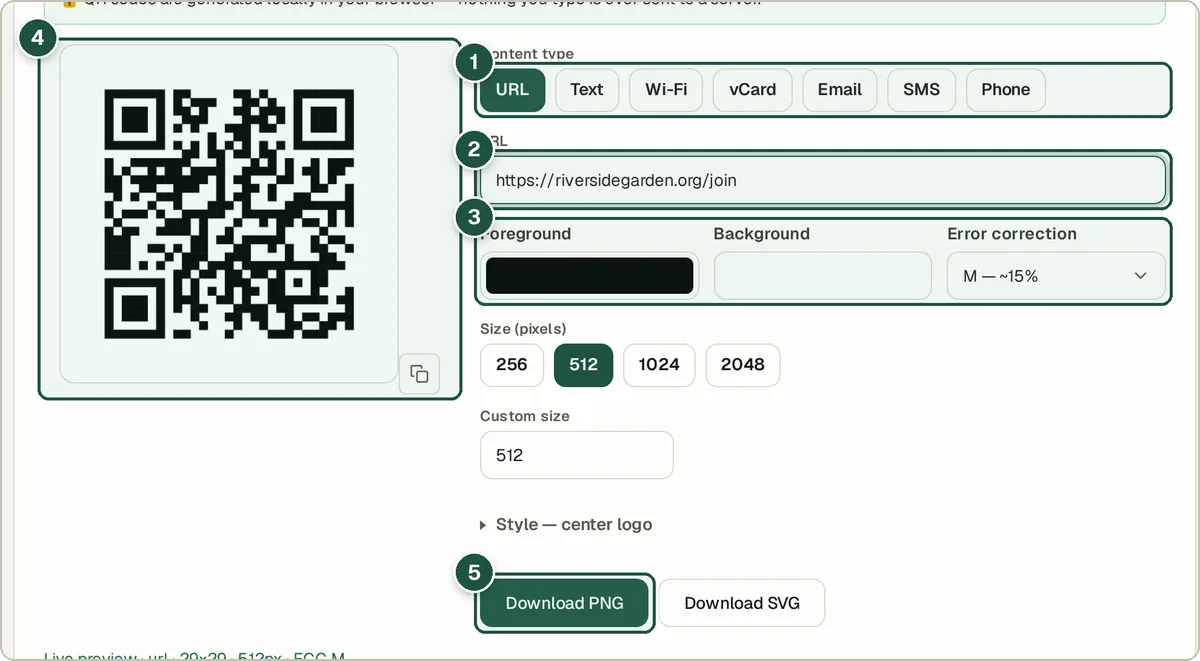
Type (1), link (2), colours and error correction (3), preview (4) and Download PNG (5).
Tips and common questions
Do these QR codes expire?
No. The information is stored inside the code itself, not on a server, so it works for as long as the link or details are valid.
Which error correction level should I use?
M suits most uses. Choose H if you add a logo or the code may get scratched, because it can still be read when part of it is covered.
Why won't my QR code scan?
Keep strong contrast (dark code on a light background), print it at least 2 cm wide, and leave a blank border around it.
PNG or SVG?
PNG works everywhere. SVG stays perfectly sharp when resized, which is best for posters and professional printing.
Privacy
QR codes are made in your browser. Your links, Wi-Fi passwords and contact details are never uploaded.
Ready to try it? The QR Code Generator is free and needs no account.
Open the QR Code Generator