
Text & Writing · Step-by-step guide
How to Compare Two Texts and Find Differences
Text Diff Checker compares two pieces of text and highlights what was added, removed or changed. Use it to check edits to a contract, an essay, a config file or code.
How to use it
Paste the original text
Put the older version in the Original box. You can also drop a text file onto it.
Paste the new version
Put the newer version in the Modified box. The comparison runs live as you type.
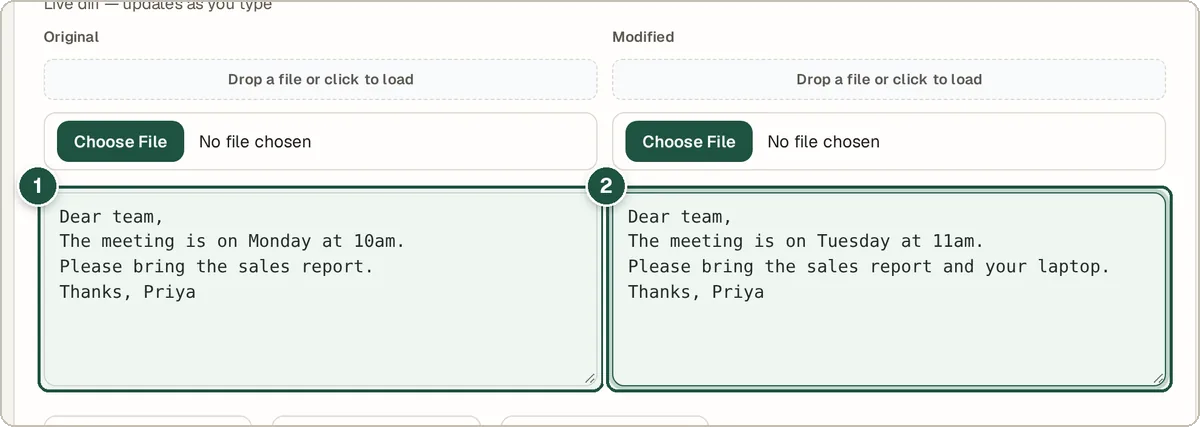
The original (1) and modified (2) text boxes. Choose how picky to be
Set Precision to line, word or character. Tick Ignore whitespace or Ignore case if extra spaces or capital letters do not matter to you.
Read the result
Pick Unified for one combined view or Side-by-Side to see both versions next to each other. Removed text is marked in red and added text in green.
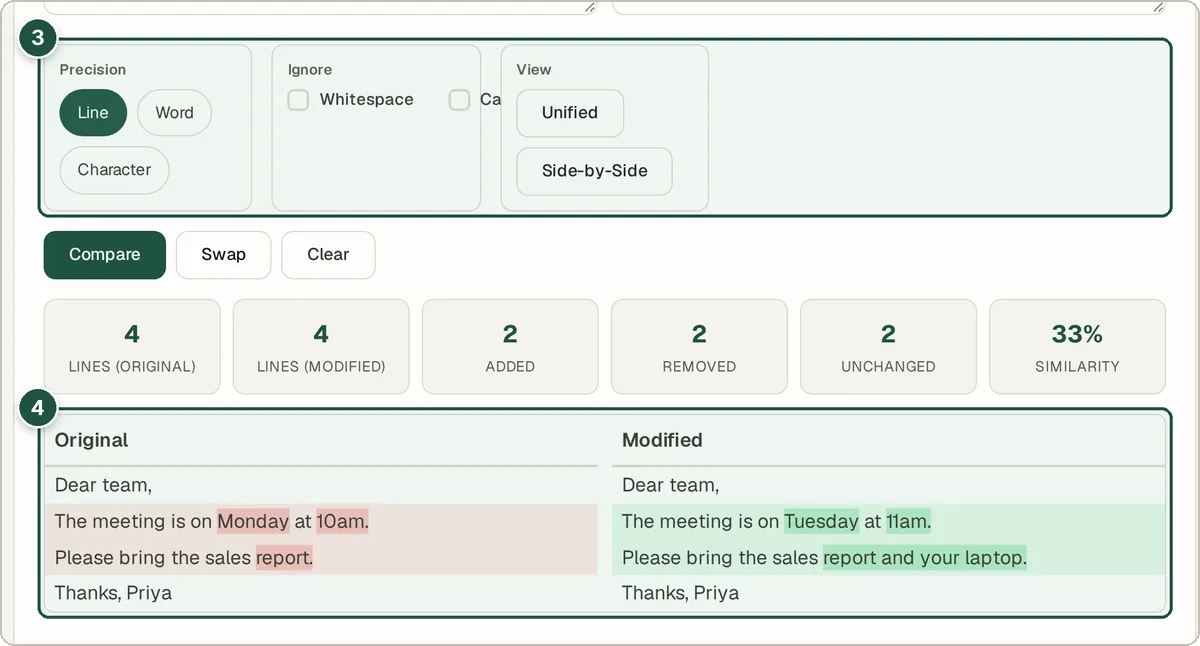
The comparison options (3) and the side-by-side result (4).
Tips and common questions
Which precision should I pick?
Use line for code and lists, word for normal writing, and character when you need to spot a single changed letter or number.
Can I swap the two sides?
Yes. Press Swap to switch the original and modified text.
Can it compare Word documents or PDFs?
It compares plain text. Copy the text out of each document and paste it in. For PDFs, extract the text first with the PDF to Word converter.
Is there a size limit?
No fixed limit, but very large files (many megabytes) can make your browser slow because all the work happens on your device.
Privacy
Both texts are compared on your own device. Nothing is uploaded, so it is safe for private documents.
Ready to try it? The Text Diff Checker is free and needs no account.
Open the Text Diff Checker