
Security · Step-by-step guide
How to Generate an MD5 or SHA-256 Hash
Hash Generator makes a short "fingerprint" of text or a file. Use it to check that a download has not been changed, or to create checksums for your own files.
How to use it
Type text or choose a file
Type into Text to Hash, or use Hash a File to fingerprint a file.
Pick the algorithms
Choose All, or pick one such as SHA-256, SHA-1, SHA-512, MD5 or CRC32. Choose the output format: Hex, Base64 or SRI.
Press Generate Hash
The hashes are calculated in your browser.
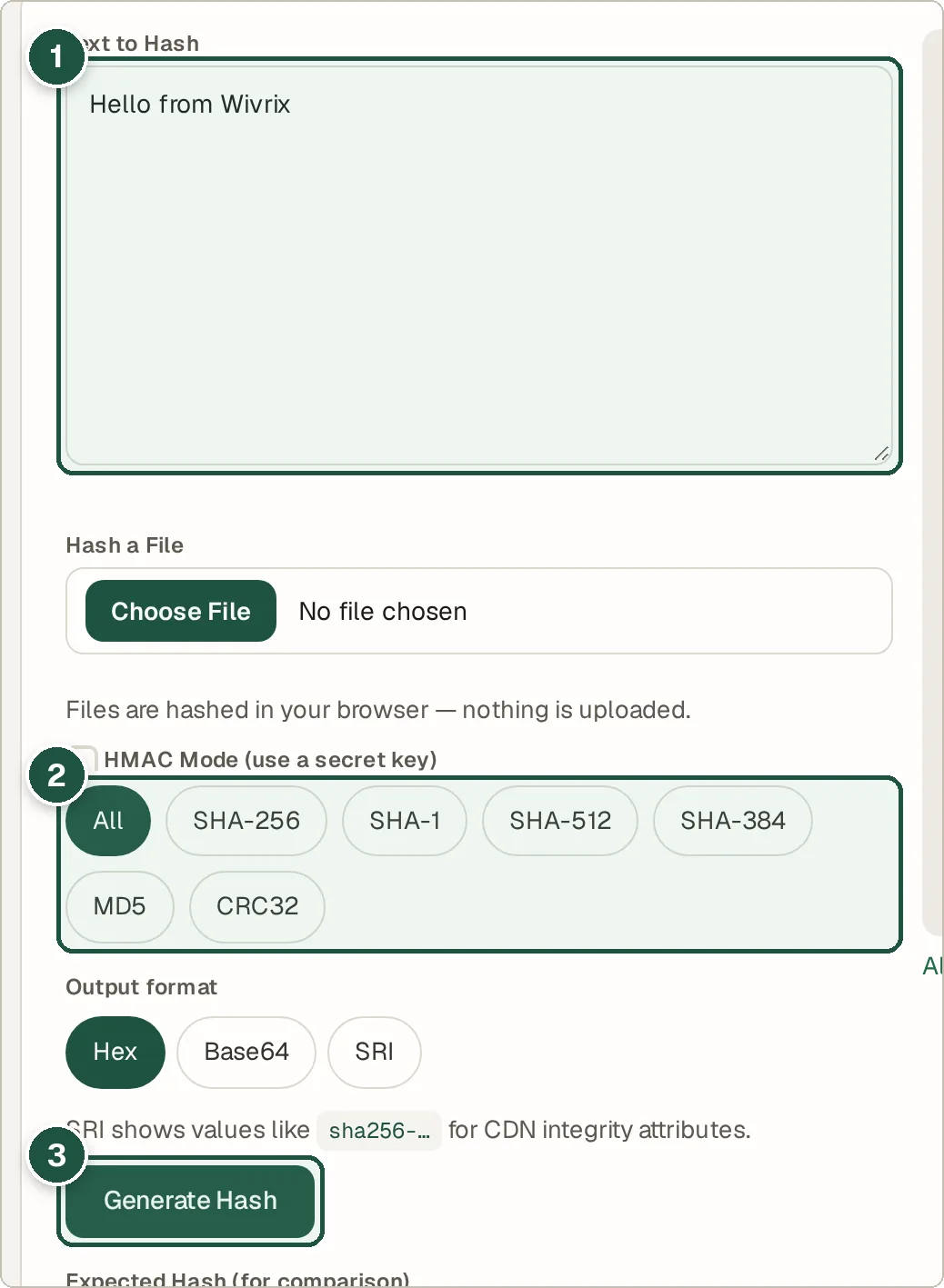
Text (1), algorithm choice (2) and Generate Hash (3). Read or compare the results
Each algorithm's hash appears in the table. To check a download, paste the hash from the website into Expected Hash and the tool tells you if it matches.
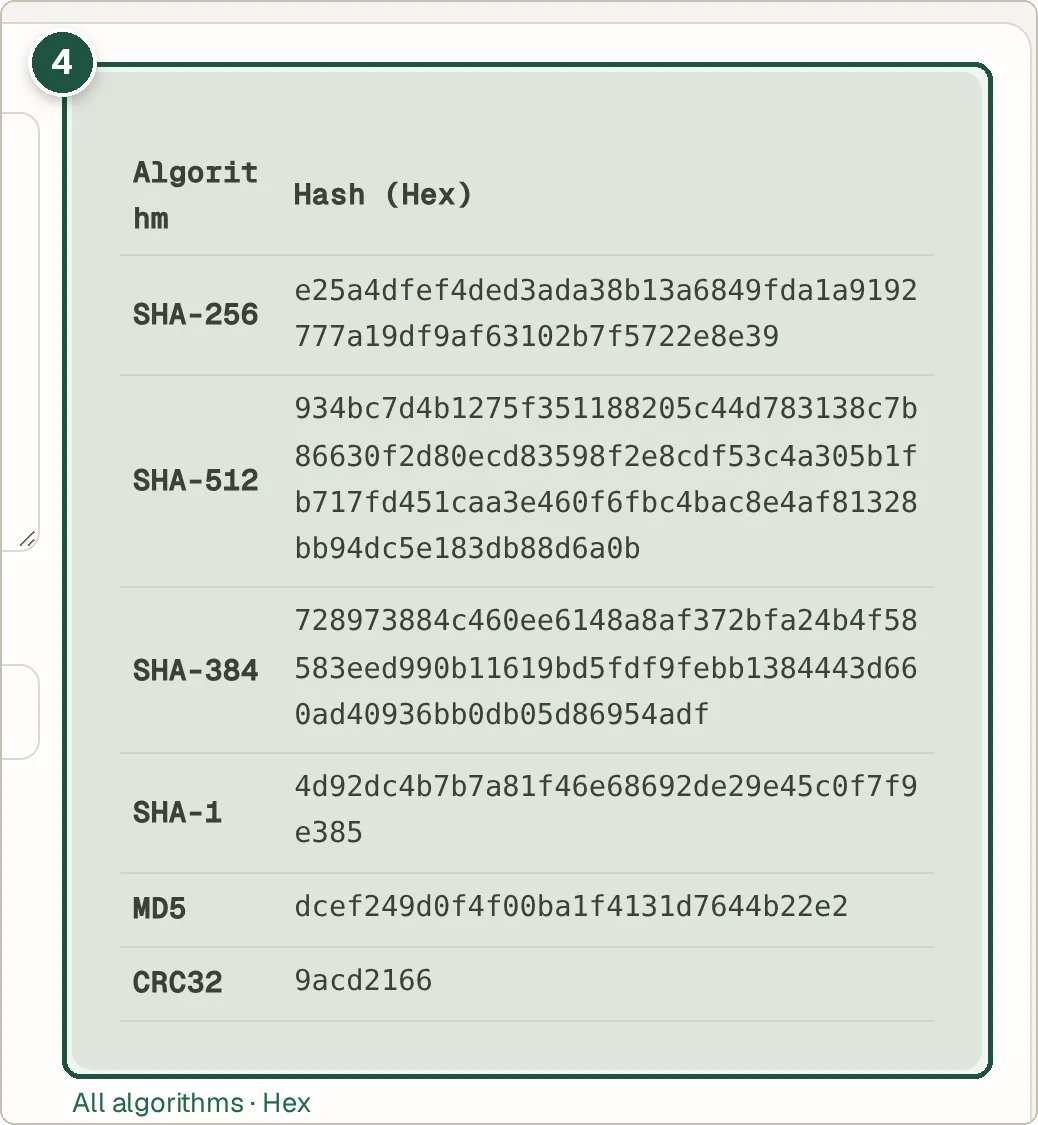
The hashes for each algorithm (4).
Tips and common questions
Which hash should I use?
Use SHA-256 for most jobs. MD5 and SHA-1 are fine for spotting accidental changes, but they are no longer safe against deliberate tampering.
Can a hash be turned back into the text?
No. Hashing is one-way. That is why it works as a fingerprint.
What is HMAC?
HMAC mixes a secret key into the hash, so only people who know the key can make or check it. Tick HMAC Mode to use it.
Is hashing the same as encryption?
No. Encryption can be undone with the right password. A hash cannot. To lock a file, use the Encrypt & Decrypt tool.
Privacy
Text and files are hashed on your own device. Files are never uploaded, even large ones.
Ready to try it? The Hash Generator (SHA-1, SHA-256, MD5) is free and needs no account.
Open the Hash Generator (SHA-1, SHA-256, MD5)