
How to Change a Voice Online With AI
Text & Writing · Step-by-step guide · 6 steps · 2 min read
Voice Changer turns text, a recording or your mic into a different voice. Pick a ready-made AI voice, copy a voice, or add effects like Robot.
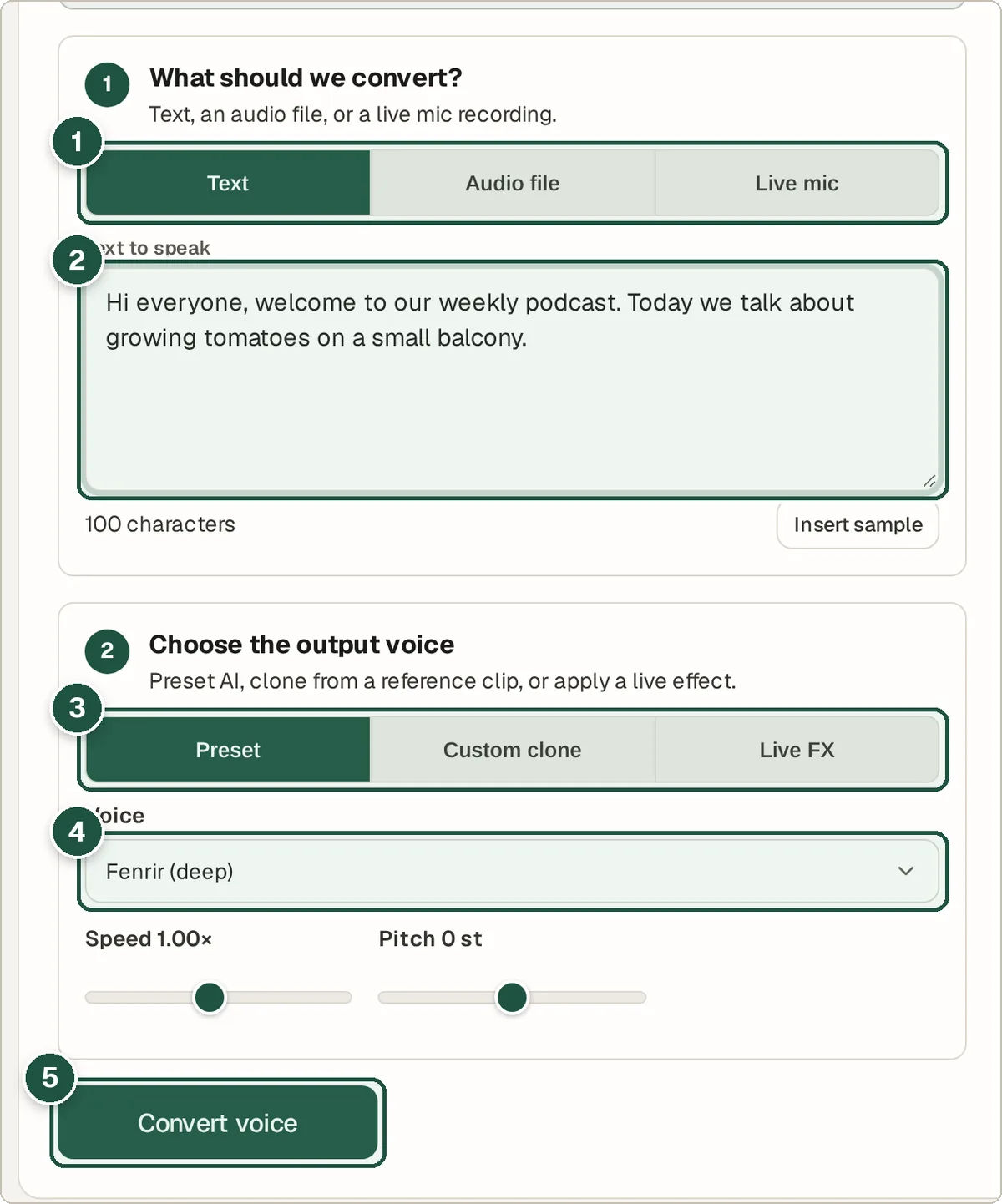
In the pictures, orange letters like A show where to look. Each step tells you its letter.
Step 1: Choose what to change
Under What should we convert?, pick Text, Audio file or Live mic. See A in the picture.
Step 2: Add your input
Type in Text to speak, or press Insert sample. You can also upload a sound file. Or press Start recording and speak. See B in the picture.
Step 3: Choose the type of new voice
Under Choose the output voice, pick one. Preset is a ready-made AI voice. Custom clone copies a voice from a recording. Live FX adds effects like Robot or Echo. See C in the picture.
Step 4: Pick the voice
Choose a Voice from the list. You can change the Speed and Pitch if you like. See D in the picture.
Step 5: Press Convert voice
The first time, the AI files download to your browser. So wait a moment. See E in the picture.
Step 6: Listen and download
Play the result. Then press Download WAV to save it.
Tips and questions
Why is Custom clone slow the first time?
It uses a much bigger AI file, about 1.5 GB. It downloads only once. Preset voices and Live FX are much smaller.
Can I copy someone else's voice?
Only copy a voice if you have permission, like your own. Never use it to pretend to be someone.
Does it work on a phone?
Yes, in modern phone browsers. But the AI needs a lot of memory. A computer works better for long clips.
Privacy
Your text and recordings are handled on your own device. Nothing is sent to us. Only the AI files are downloaded.
Try it now
The Voice Changer is free. You do not need an account.