
Text & Writing · Step-by-step guide
How to Turn Text Into Natural Speech (Free)
Text to Voice reads your text out loud in a natural, human-like voice. Use it for voice-overs, study notes, videos or just to listen instead of read.
How to use it
Type or paste your text
Put your words into Text to speak, or press Try sample text to test it.
Choose a style and voice
Pick a Speaking style (for example Warm & friendly or News reader) and a Voice. You can also change the Speed, and Preview voice plays a short clip.
Press Generate speech
The first time, your browser downloads the voice model (about 80 MB) and a small window shows the progress. After that it is cached and starts much faster.
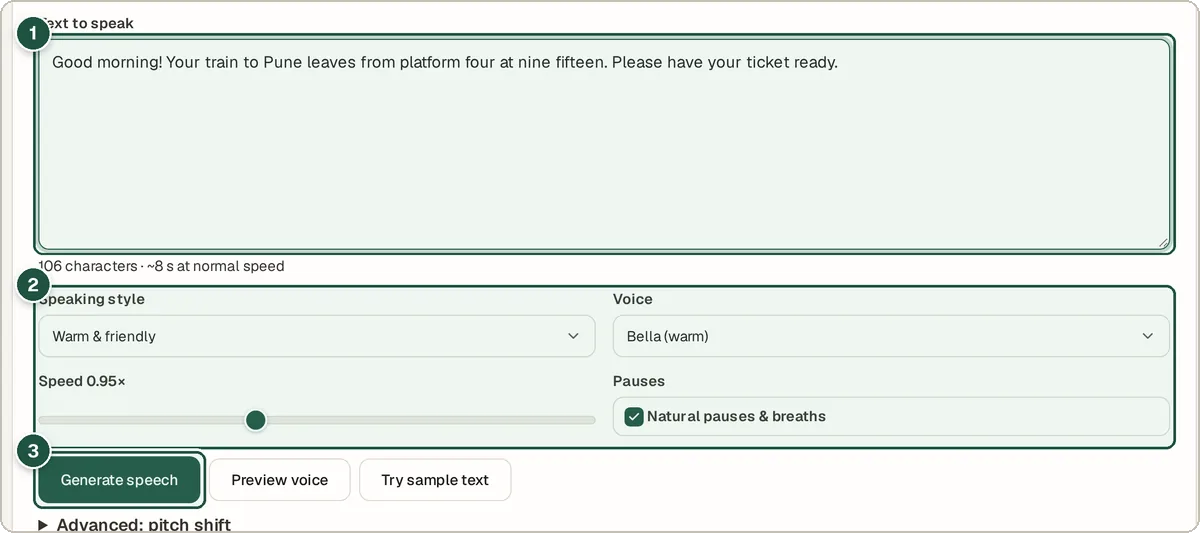
Your text (1), style, voice and speed (2), and Generate speech (3). Listen and download
When it is ready, an audio player appears. Press play, then Download WAV to save the file.
Tips and common questions
Why is the first run slow?
The AI voice model has to download once (about 80 MB). It is then stored in your browser, so later runs start quickly.
Can I use the audio in my videos?
Yes, you can download the WAV file and use it in your own projects.
Which voice sounds best?
Heart is marked as the best quality. Try a few with Preview voice, because the best voice depends on your text.
Can I change the pitch?
Yes. Open Advanced: pitch shift and move the Pitch slider up or down.
Privacy
The voice model runs on your own device. Your text is not uploaded; only the model files are downloaded.
Ready to try it? The Text to Voice is free and needs no account.
Open the Text to Voice