
Developer · Step-by-step guide
How to Format and Validate JSON Online
JSON Formatter turns squashed, hard-to-read JSON into neat, indented text and tells you if something is broken. It is useful for anyone working with APIs, config files or exported data.
How to use it
Paste your JSON
Paste your JSON into Enter JSON, or use choose a file to load a
.jsonfile.Press Beautify
Pick an indent size (2, 4 or Tab) and press Beautify. Use Minify instead to squash it onto one line, or Validate to only check it.
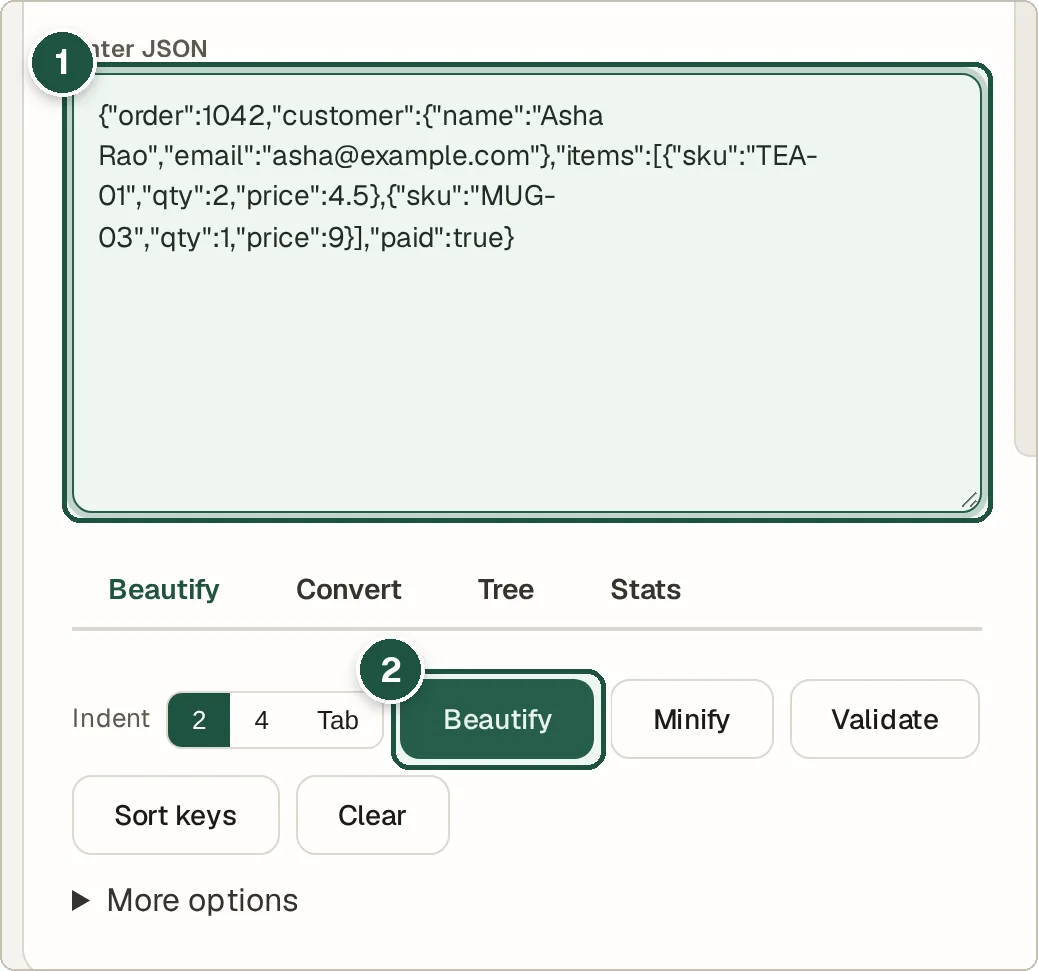
Paste JSON (1) and press Beautify (2). Read or copy the result
The formatted JSON appears in the output box. If there is a mistake, such as a missing comma or quote, you get an error message pointing to it. Press Download .json to save the result.
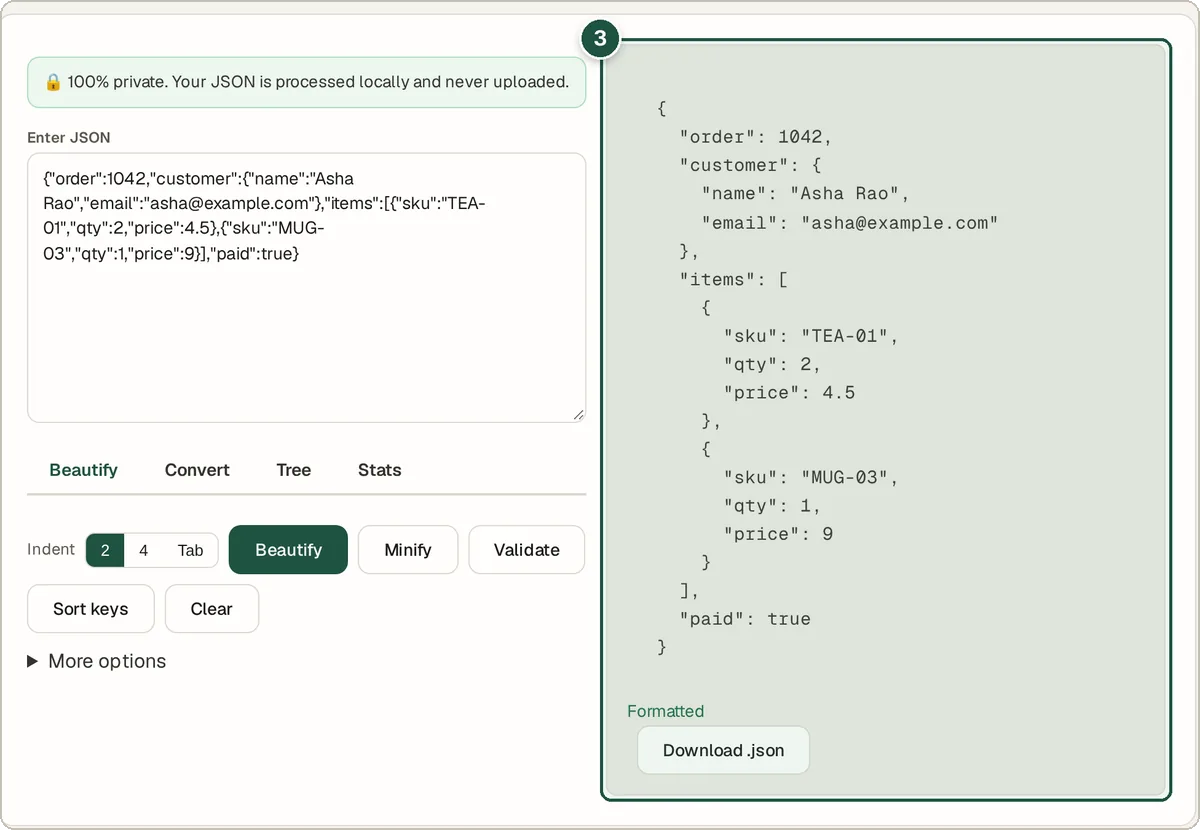
The neatly indented result (3).
Tips and common questions
What makes JSON invalid?
The most common problems are a trailing comma after the last item, single quotes instead of double quotes, and keys without quotes. The error message tells you where to look.
Can I see my JSON as a tree?
Yes. Open the Tree tab and press Build Tree View to fold and unfold each level.
Can it convert JSON to other formats?
Yes. The Convert tab turns JSON into YAML, XML, CSV or TypeScript types, and can turn a URL query string into JSON.
What does Sort keys do?
It puts the keys in each object in alphabetical order, which makes two JSON files easier to compare.
Privacy
Your data is processed inside your browser and is never uploaded, so it is safe to paste private or work data.
Ready to try it? The JSON Formatter & Validator is free and needs no account.
Open the JSON Formatter & Validator