
Network & Domain · Step-by-step guide
How to Read a User Agent String
User Agent Parser turns a long, confusing user agent string into plain facts: browser, version, operating system, device and whether it is a bot. Useful for web developers and support teams reading logs.
How to use it
Paste a user agent (or leave it empty)
Paste the string into the box, or leave it empty to check your own browser.
Press Parse User Agent
The result appears straight away.
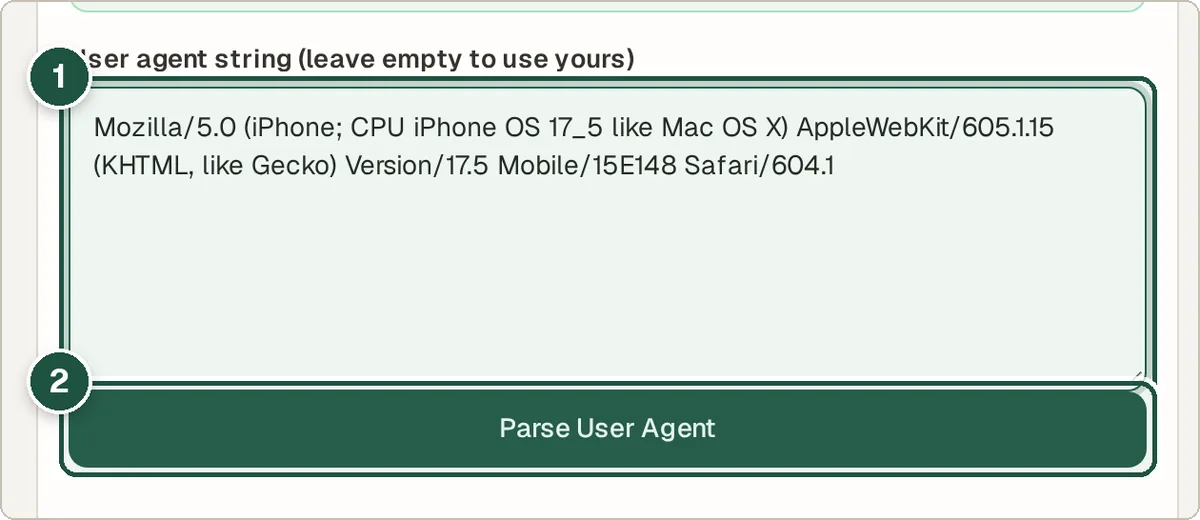
User agent box (1) and Parse User Agent (2). Read the result
You see the browser and version, operating system, device type, rendering engine and whether it looks like a bot.
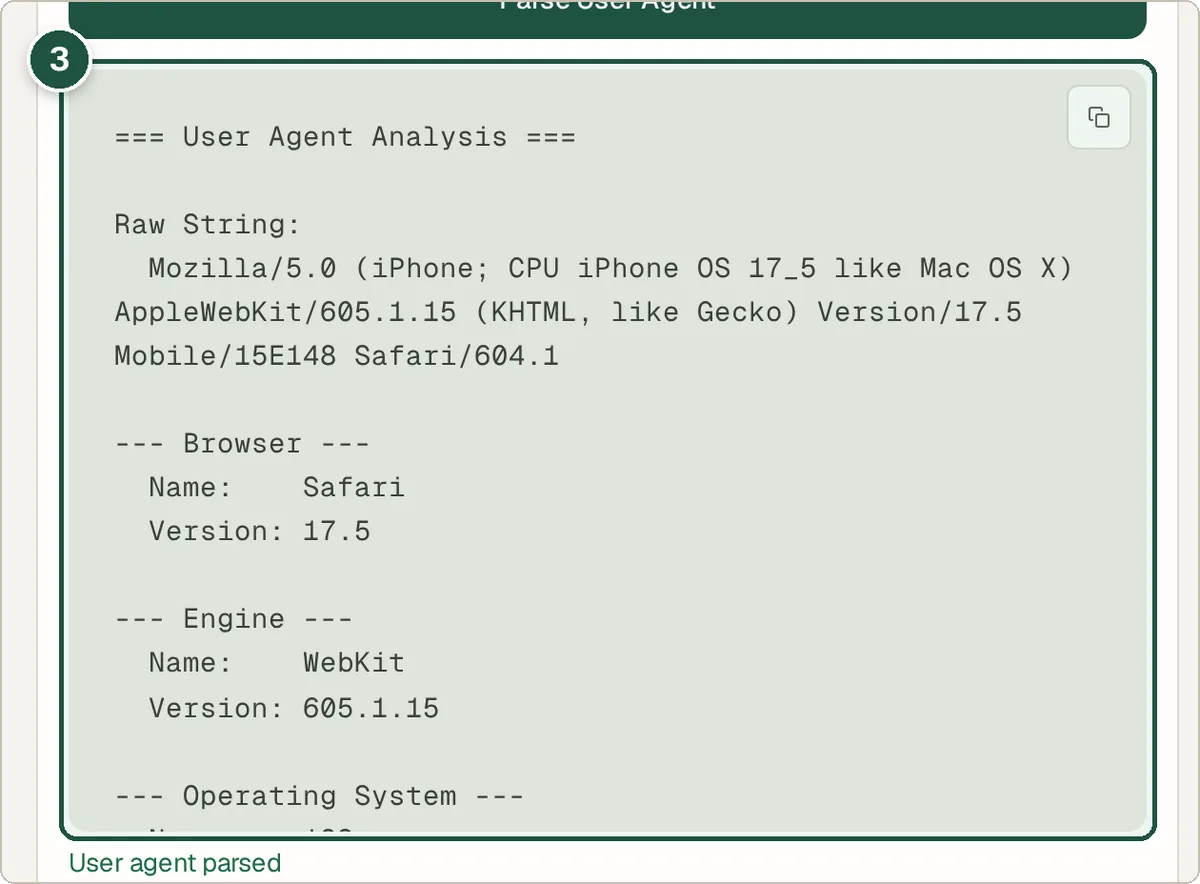
The parsed details (3).
Tips and common questions
What is a user agent?
It is a short text your browser sends to every website saying which browser and system it is. Sites use it to adjust pages and count visitors.
Can a user agent be faked?
Yes. Browsers and bots can send any user agent, so treat it as a hint, not proof.
Where do I find user agents?
In your web server logs or analytics, or in the browser's developer tools under Network.
Privacy
Parsing happens entirely in your browser and even works offline. Nothing is uploaded.
Ready to try it? The User Agent Parser is free and needs no account.
Open the User Agent Parser