
Everyday · Step-by-step guide
How to Download Large Files Faster in Your Browser
Large File Downloader helps you download big files, such as ISOs, datasets and videos, more reliably. It can use several connections at once, pause and resume, and check the file afterwards.
How to use it
Paste the file link
Paste the direct download address into File URL.
Press Analyze
The tool checks the file's size and whether the server supports faster, resumable downloads.
Check the file info
The panel shows the file name, size and the number of connections it will use. Auto (recommended) picks this for you.
Press Download
Watch the progress. You can Pause and Resume, then press Save file when it is done.
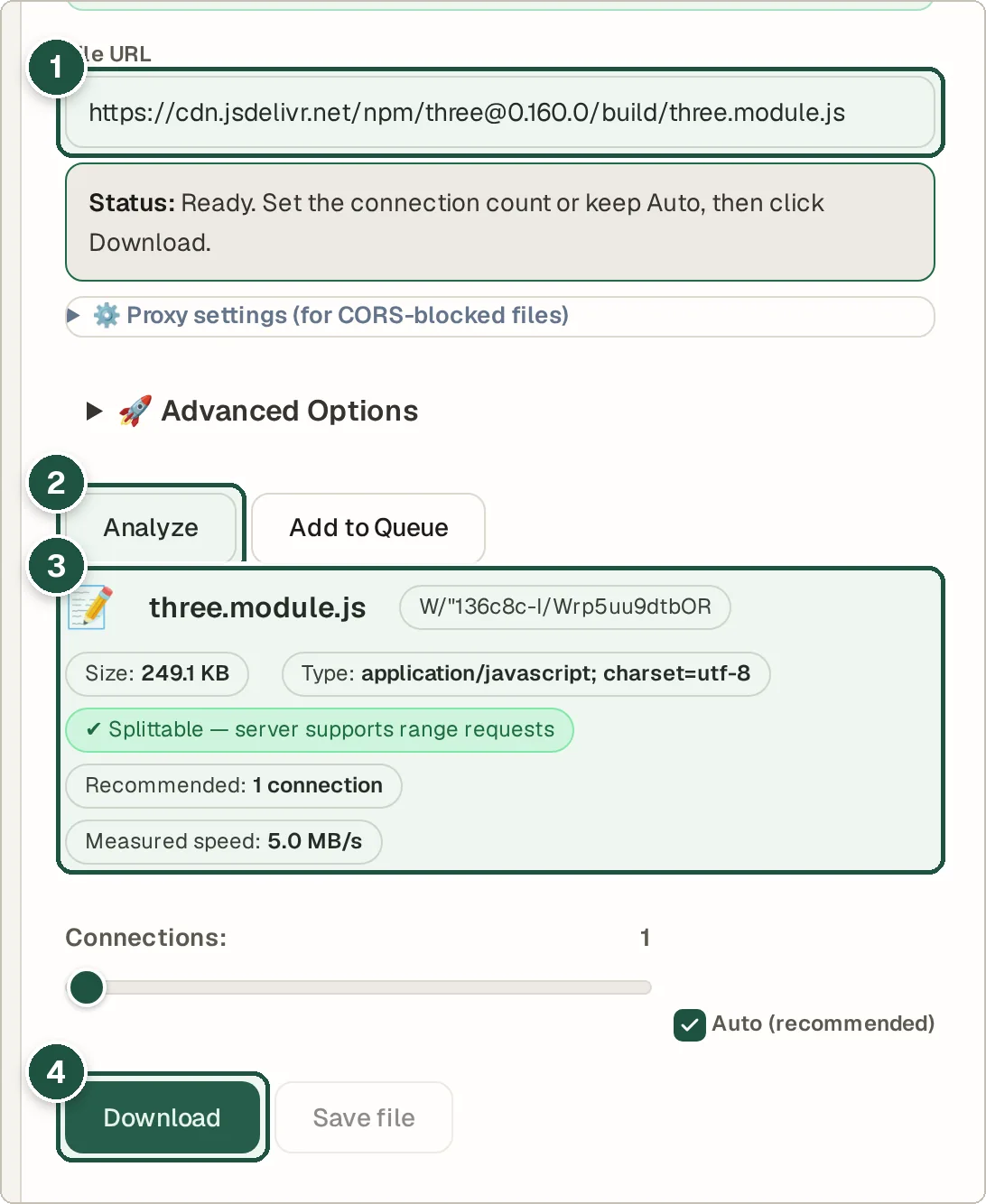
File URL (1), Analyze (2), the file info panel (3) and Download (4).
Tips and common questions
Why does it say the file is blocked (CORS)?
Some servers do not let other websites fetch their files. Open Proxy settings to route the download through a proxy, or download it directly from the site.
How do I check the file is not corrupted?
If the website lists a SHA-256 checksum, paste it into Checksum (SHA256) under Advanced Options. The tool checks the file when it finishes.
Can I limit the speed?
Yes. Set a Bandwidth limit in Advanced Options so the download does not slow down everything else.
Privacy
Files download straight from the source server to your browser. Wivrix only sees the file if you turn on the proxy for blocked files.
Ready to try it? The Large File Downloader is free and needs no account.
Open the Large File Downloader