
Network & Domain · Step-by-step guide
How to Check DNS Records for Any Domain
DNS Lookup shows a domain's DNS records, the settings that point it to a website, email service and more. It is handy when setting up a site or fixing email problems.
How to use it
Type the domain
Enter a domain such as
example.cominto Domain name.Choose a record type
Pick a Record type: A for the website's address, MX for email, TXT for verification and SPF, NS for nameservers, and more.
Press Lookup DNS
The results load in a moment.
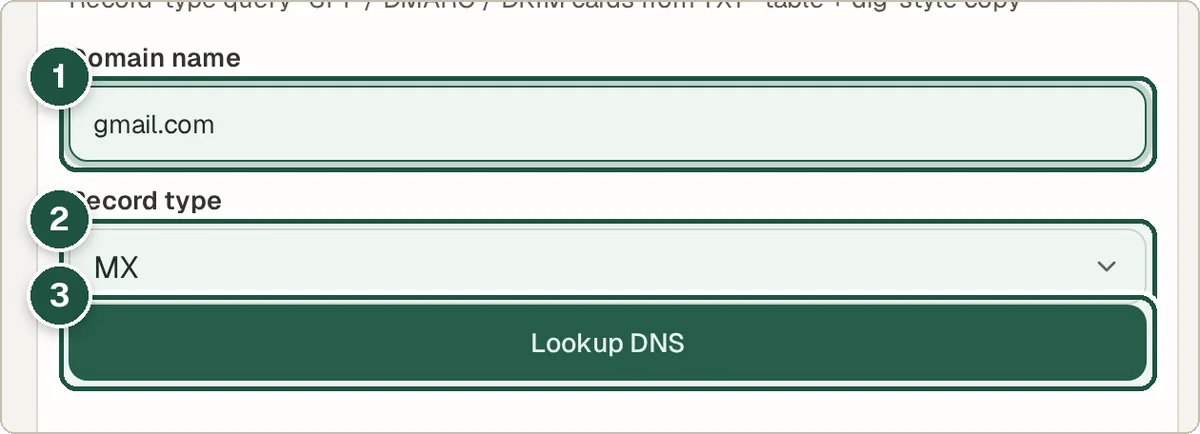
Domain (1), record type (2) and Lookup DNS (3). Read the records
Each record shows its value and TTL. TXT records like SPF and DMARC are explained in readable cards. Copy dig-style copies the result in the familiar command-line format.
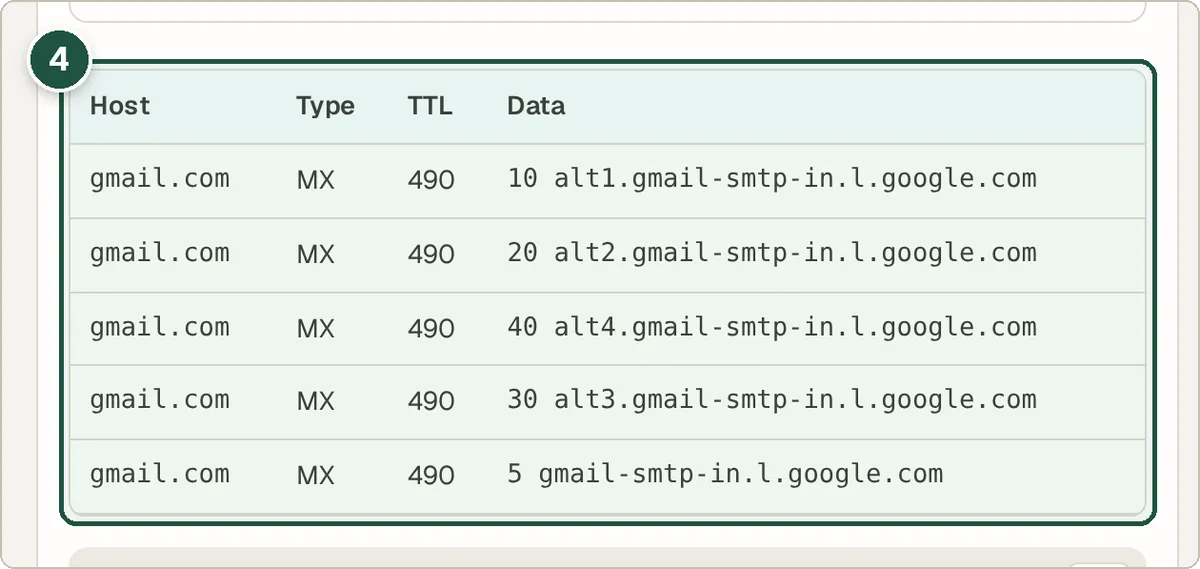
The records table (4).
Tips and common questions
Why don't my new DNS changes show?
DNS changes can take from a few minutes to 48 hours to spread. The TTL tells you roughly how long old answers are cached.
Which record controls my email?
MX records say which server receives email. SPF, DKIM and DMARC (in TXT records) help stop your mail going to spam.
What is TTL?
Time To Live is how many seconds other computers may remember a record before asking again.
Privacy
Lookups go from your browser straight to Cloudflare's public DNS (1.1.1.1). They do not pass through the Wivrix server.
Ready to try it? The DNS Lookup is free and needs no account.
Open the DNS Lookup