
Images & PDF · Step-by-step guide
How to Remove a Watermark or Logo From a Photo
Watermark Remover erases unwanted text, logos or objects from a photo (and short videos). You mark the area and on-device AI rebuilds what should be underneath.
How to use it
Choose your image or video
Click the box to choose a file. It appears in the editor.
Pick a marking tool
Use Brush to paint over the watermark, or Box to draw a rectangle around it. Erase fixes mistakes and Move lets you pan when zoomed in.
Mark the watermark
Cover the whole watermark, and a little around its edges. The marked area shows in red.
Press Remove watermark
The AI fills in the marked area. It runs on your device, so it may take a few seconds.
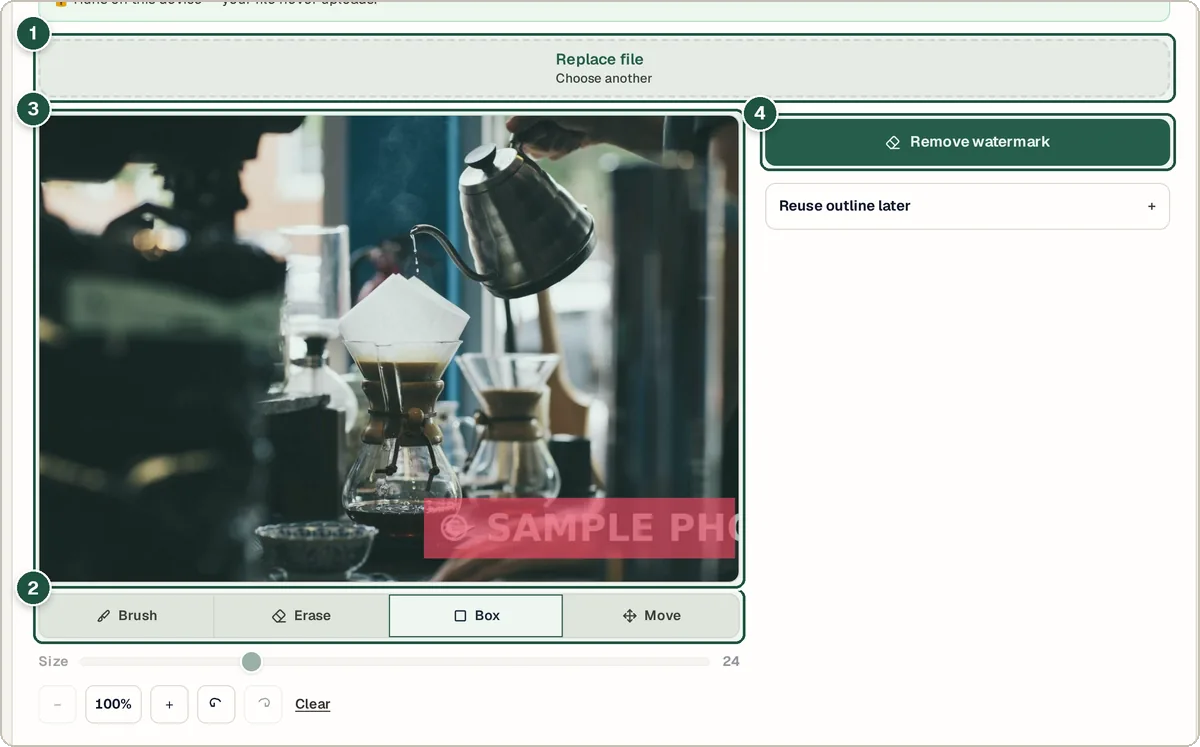
File box (1), marking tools (2), the marked watermark (3) and Remove watermark (4). Compare the result
Drag the slider to compare before and after. Press Again to clean up any leftovers.
Download
Choose a format and press Download.
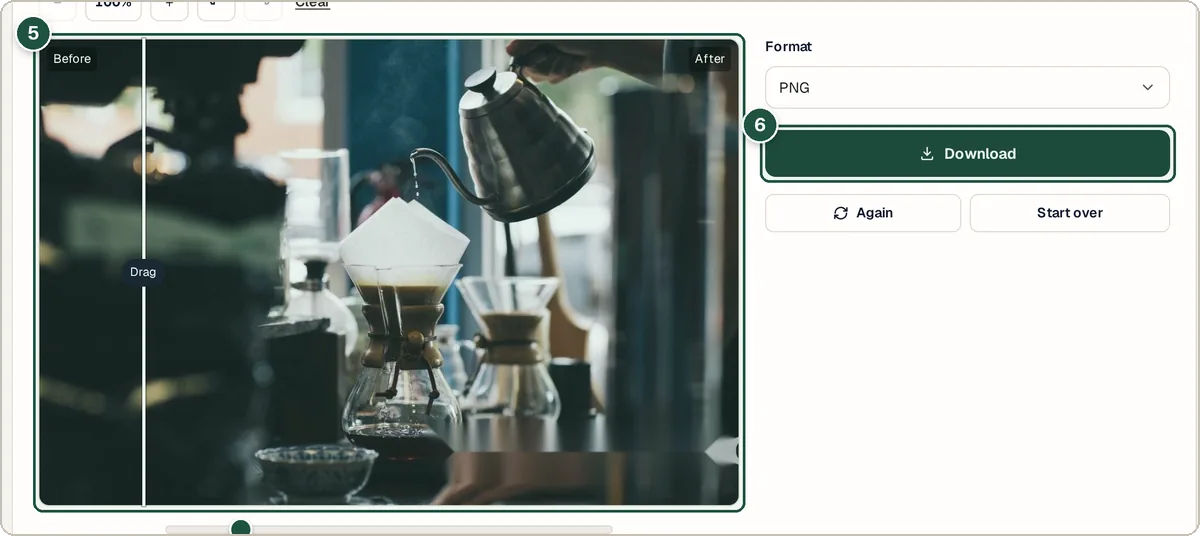
Before and after slider (5) and Download (6).
Tips and common questions
Is it legal to remove watermarks?
Only remove watermarks from images you own or have permission to edit. Removing one from someone else's work to reuse it can break copyright law.
Why is there a blur where the watermark was?
The AI guesses what was underneath. Plain backgrounds come out best. For busy areas, try marking a slightly bigger area or running it again.
Can it remove watermarks from videos?
Yes, for short clips. Mark the watermark on a frame, and turn on Track movement if it moves.
Privacy
Processing runs on your own device. Your photos and videos are not uploaded.
Ready to try it? The Watermark Remover is free and needs no account.
Open the Watermark Remover