
Text & Writing · Step-by-step guide
How to Change Your Voice Online With AI
Voice Changer turns text, a recording or your live microphone into a different voice. Pick a ready-made AI voice, clone a reference voice or add simple effects like Robot or Echo.
How to use it
Choose what to convert
Under What should we convert? pick Text, Audio file or Live mic.
Add your input
Type into Text to speak (or press Insert sample), upload an audio file, or press Start recording and speak.
Choose the kind of output voice
Under Choose the output voice pick Preset for a ready-made AI voice, Custom clone to copy a reference recording, or Live FX for effects such as Robot, Deep, Helium or Radio.
Pick the voice and fine-tune
Choose a Voice from the list and adjust Speed and Pitch if you like.
Convert
Press Convert voice. The first run downloads the AI model to your browser, so give it a moment.
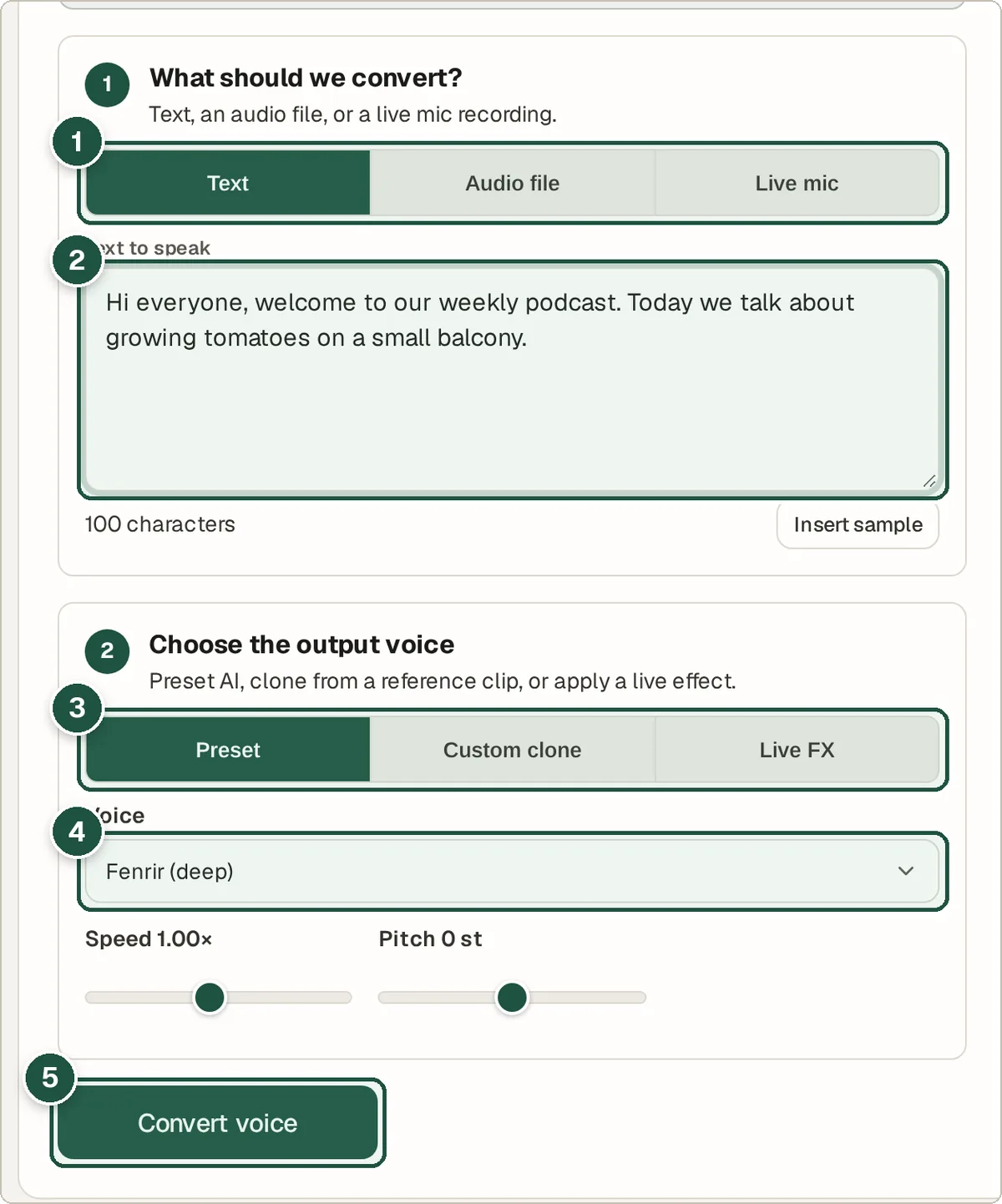
Input type (1), your text (2), output voice type (3), the voice (4) and Convert voice (5). Listen and download
Play the result, then press Download WAV to save it.
Tips and common questions
Why does Custom clone take so long the first time?
Cloning a voice uses a much bigger AI model (around 1.5 GB) that downloads once. Preset voices and Live FX are far lighter.
Is it OK to clone someone else's voice?
Only clone voices you have permission to use, such as your own. Do not use it to pretend to be someone else.
Can I use it on my phone?
It works in modern mobile browsers, but the AI models need a fair amount of memory. A laptop or desktop is smoother for long clips.
Privacy
Recordings and text are processed on your own device. Nothing is uploaded; only the AI model files are downloaded.
Ready to try it? The Voice Changer is free and needs no account.
Open the Voice Changer