
Images & PDF · Step-by-step guide
How to Edit a Photo With AI Using Plain Words
AI Image Editor changes a photo from a simple instruction. Type something like "change the shirt to red" or "make it a snowy evening" and the AI edits the picture for you.
How to use it
Choose quality
Pick Fast for quick colour and style edits, or Quality for sharper results that take longer.
Upload a photo
Choose a PNG, JPEG or WebP photo. It is centre-cropped on your device before it is sent to the AI.
Describe the edit
Type what you want in Prompt, or press an idea such as Watercolor or Snowy evening.
Set the strength and run
Move Edit strength: lower keeps more of the original, higher changes more. Then press Edit with AI.
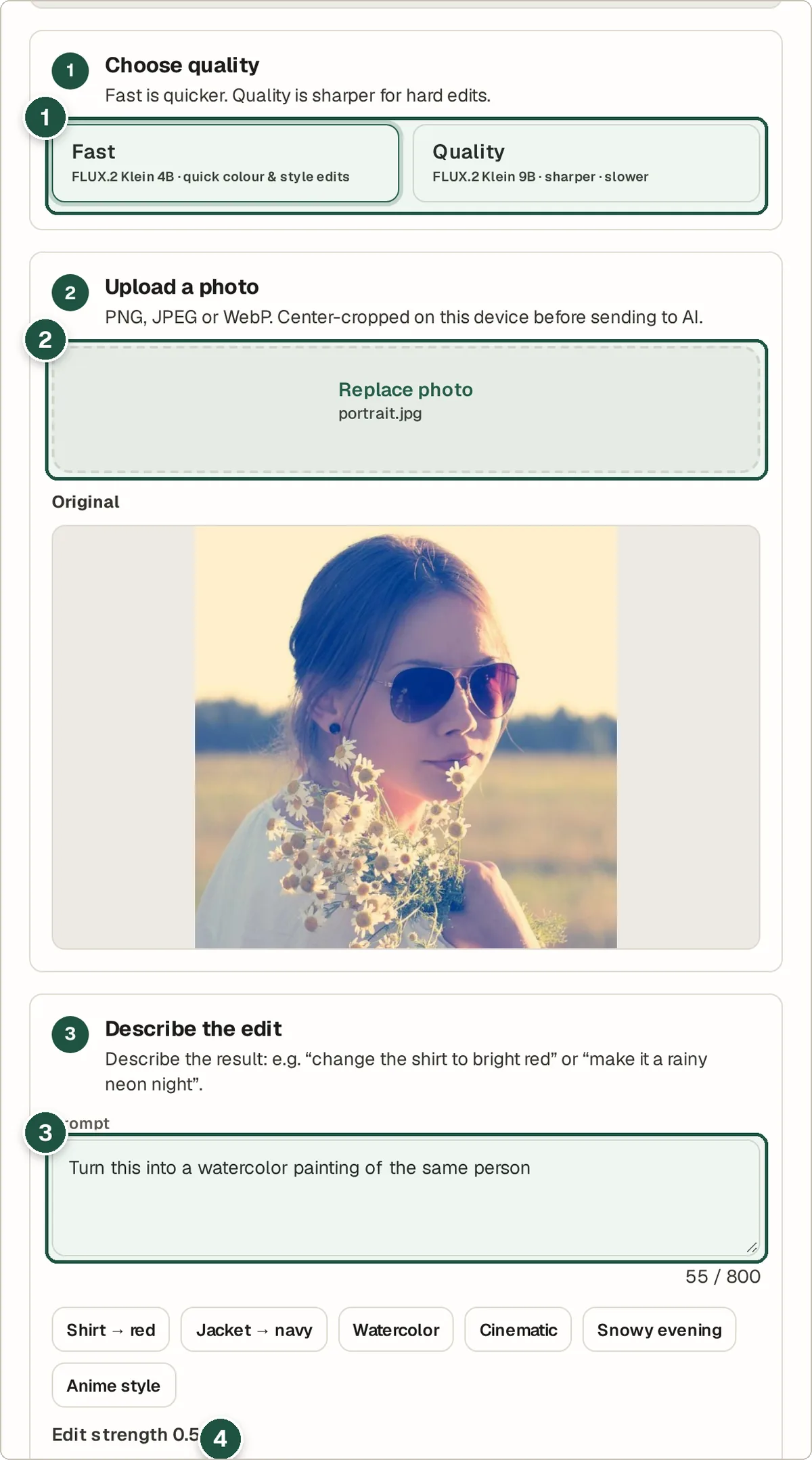
Quality (1), photo (2), prompt (3) and edit strength (4). Compare and download
Check the before and after, then press Download PNG. Use as new original lets you make another edit on top.
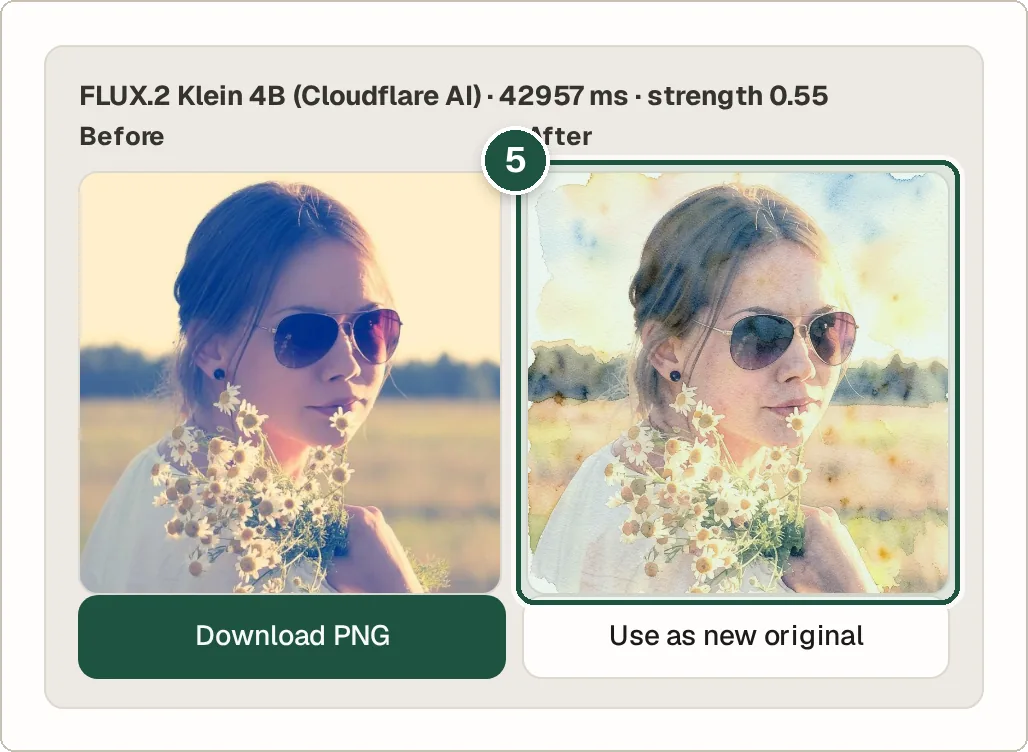
The edited result next to the original (5).
Tips and common questions
Is my photo stored?
The photo is sent to Cloudflare Workers AI to make the edit, and it is not kept afterwards.
Why does it say the daily limit is reached?
The free AI service has a daily quota shared by all users. Try again the next day.
What edits work best?
Colour changes, styles (watercolor, anime, cinematic), weather and lighting. Big changes to faces or adding many new objects are less reliable.
Privacy
Your photo is sent to Cloudflare Workers AI to be edited and is not stored. Avoid uploading sensitive images.
Ready to try it? The AI Image Editor is free and needs no account.
Open the AI Image Editor