
Network & Domain · Step-by-step guide
How to Browse a Website Through a Web Proxy
Web Proxy opens a website through Wivrix's proxy, so the site sees the proxy's address instead of yours. It is handy for a quick look at a page that is blocked on your network.
How to use it
Enter the website address
Type the address into Website URL.
Choose link rewriting
Keep Rewrite links so browsing stays proxied ticked so links you click also go through the proxy.
Press Browse
The page loads through the proxy.
Share or bookmark the proxy link
A Direct proxy link appears with a Copy button, so you can share or bookmark it. Open in New Tab opens the page full size.
Browse the page
The page shows in the preview frame. Press Stop to end.
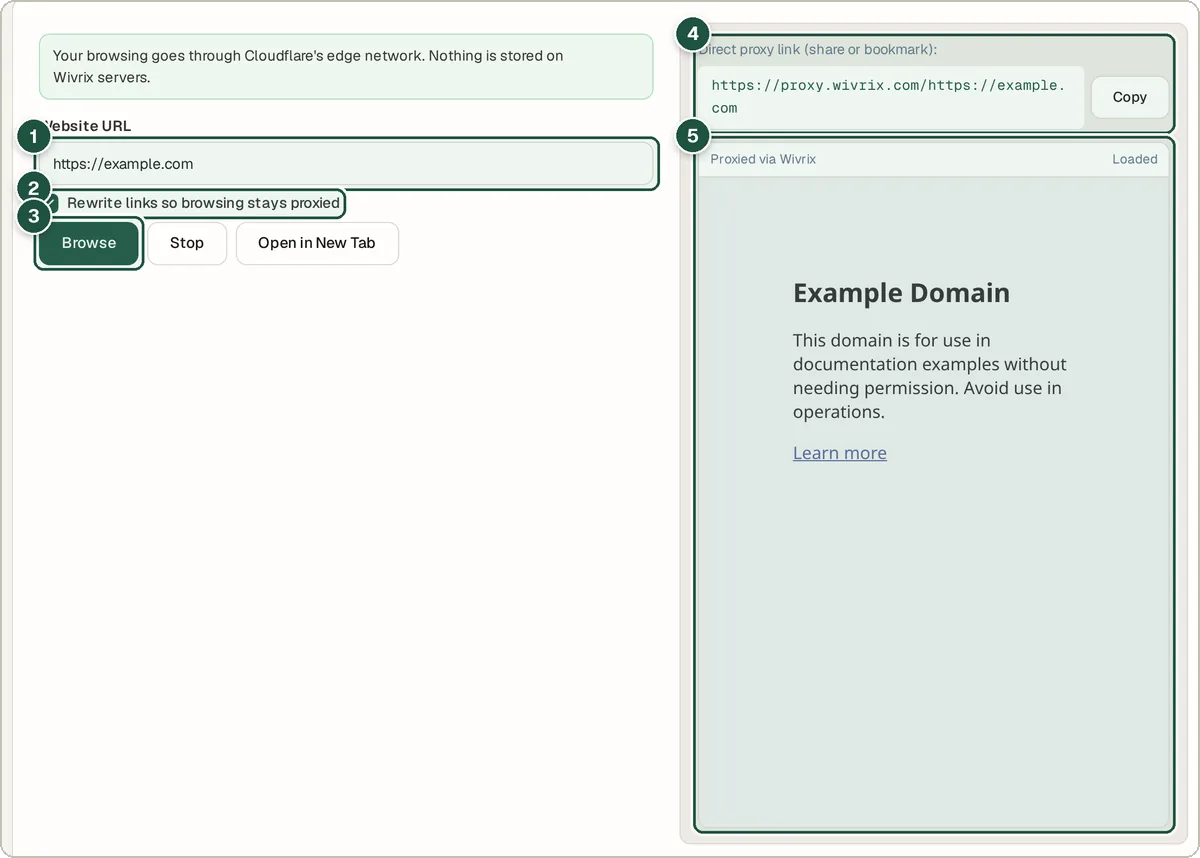
Website URL (1), link rewriting (2), Browse (3), the direct proxy link (4) and the proxied page (5).
Tips and common questions
Is it the same as a VPN?
No. It only covers the pages you open through it, not your whole device or other apps.
Why do some sites not work?
Complex sites with logins, video or heavy scripts often break through a web proxy. It works best for simple pages.
Should I log in to accounts through it?
It is better not to. Use a proxy for public pages, not for banking or private accounts.
Privacy
Pages you open are fetched through a Cloudflare Worker run by Wivrix (proxy.wivrix.com). The website sees the proxy, not your IP.
Ready to try it? The Web Proxy — Browse Any Website via Proxy is free and needs no account.
Open the Web Proxy — Browse Any Website via Proxy