
Images & PDF · Step-by-step guide
How to Create an Image From Text With AI
Text to Image turns a written description into a picture using AI. Use it for illustrations, blog images, ideas and fun.
How to use it
Describe the image
Type what you want into Describe the image, for example "a calm mountain lake at sunrise, watercolor". The example chips fill in a prompt for you.
Or tap an example
Press a chip such as Mountain lake or Watercolor fox to start from a ready-made idea.
Choose size and seed
Pick a Size of 512, 768 or 1024 pixels. A Seed number lets you recreate the same image later; press 🎲 for a random one.
Press Generate image
The picture usually appears within a few seconds to a minute.
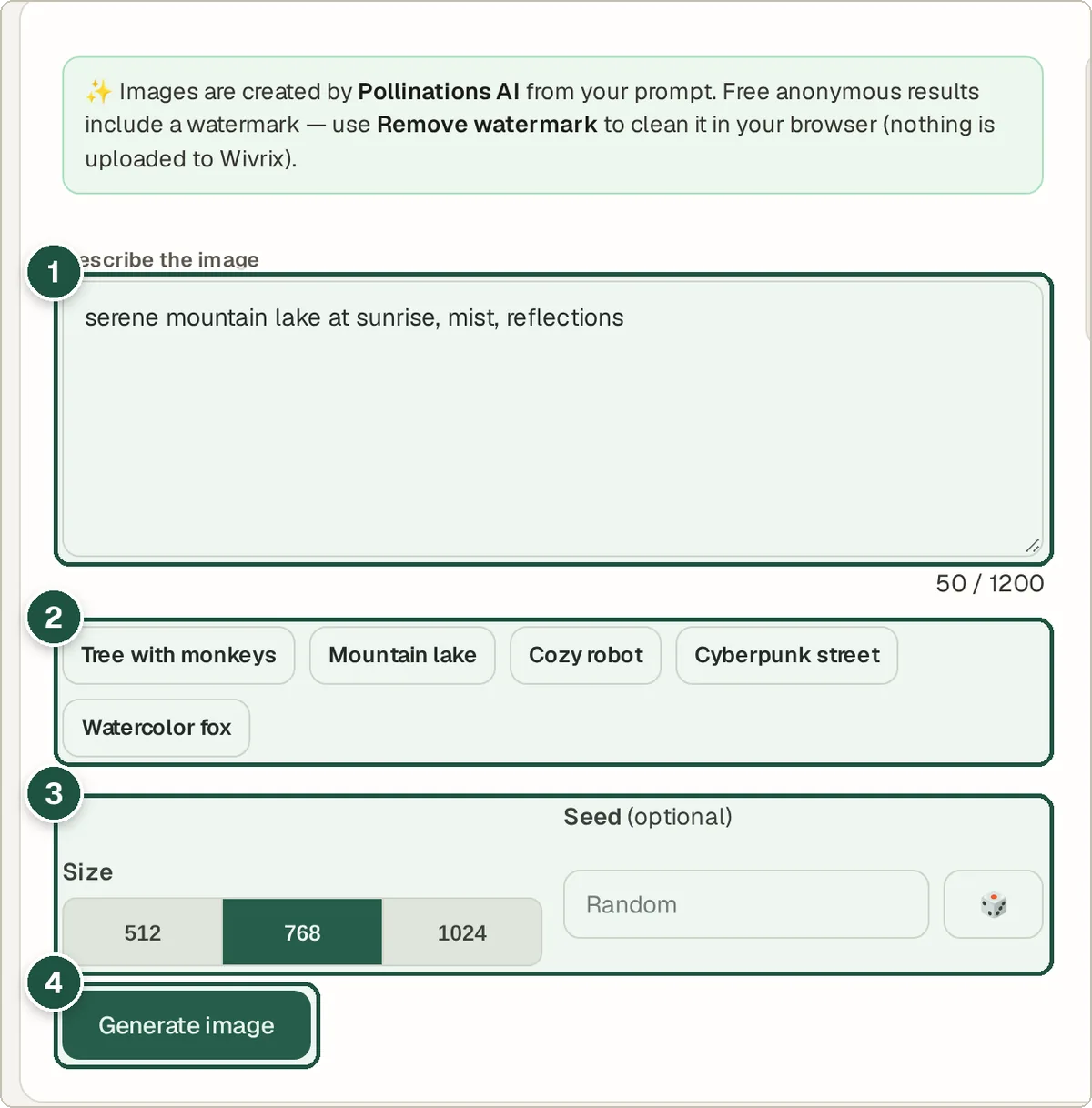
Prompt (1), example chips (2), size and seed (3) and Generate image (4). Download
Press Download PNG. If the image has a small logo, Remove watermark opens it in the Watermark Remover with the logo already marked.
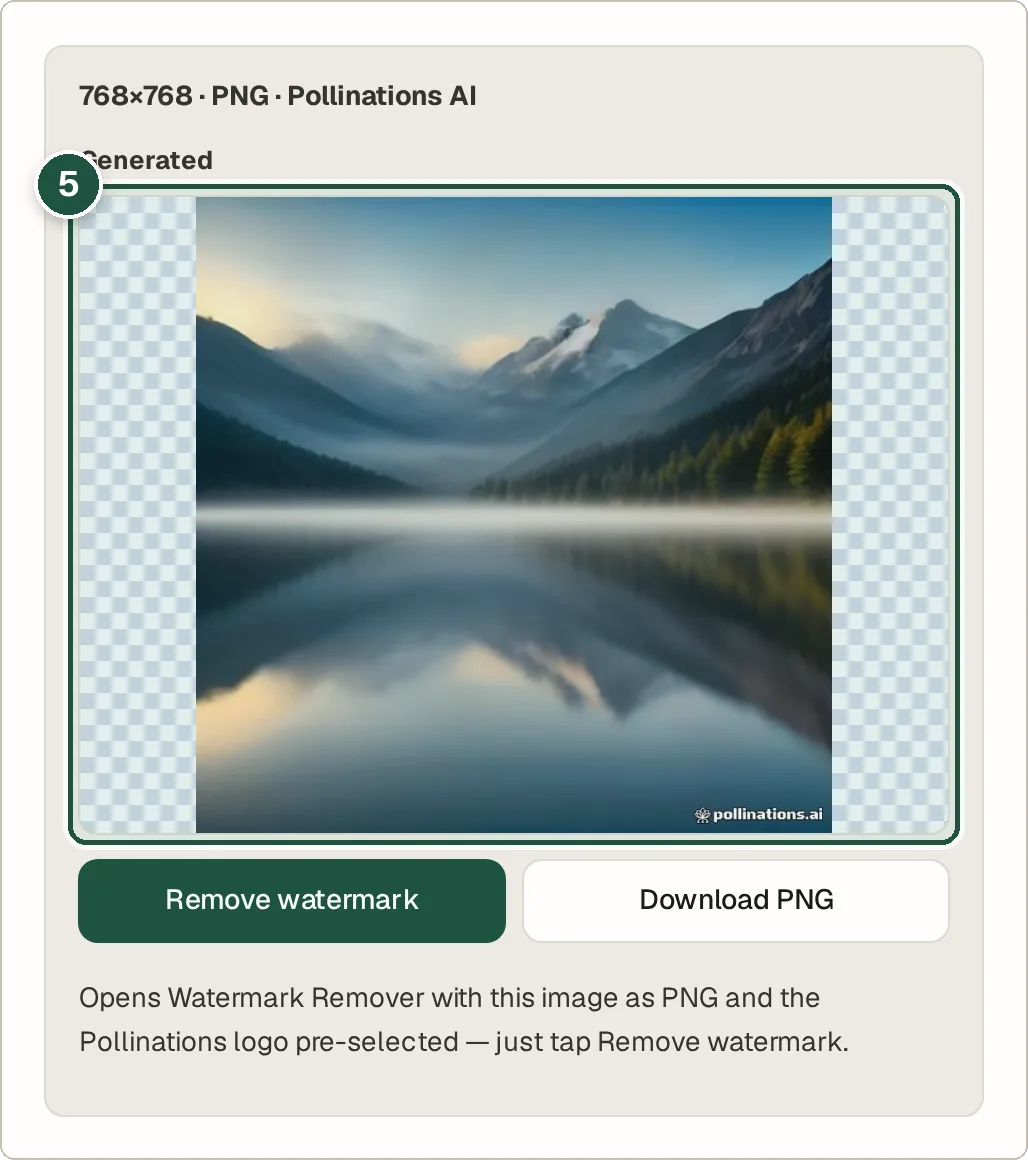
The generated image (5), with Remove watermark and Download PNG below it.
Tips and common questions
How do I write a good prompt?
Say what the subject is, where it is, and the style, for example "a red bicycle leaning on a brick wall, evening light, photo". Short and specific works best.
Why did generation fail?
The images come from an outside AI service, Pollinations, which is sometimes busy. Wait a minute and try again.
Why do I get a different picture each time?
AI adds randomness. Use the same Seed and prompt to get the same result again.
Privacy
Your prompt is sent to the Pollinations AI service to create the image, so do not include private information in it.
Ready to try it? The Text to Image Generator is free and needs no account.
Open the Text to Image Generator